Connect your store to AI applications like Claude through the MCP protocol.
Last updated: 2026-09-09
🔧 Connecting Your Store to AI Tools via MCP
1
From the sidebar, open Store Settings, then choose MCP.
2
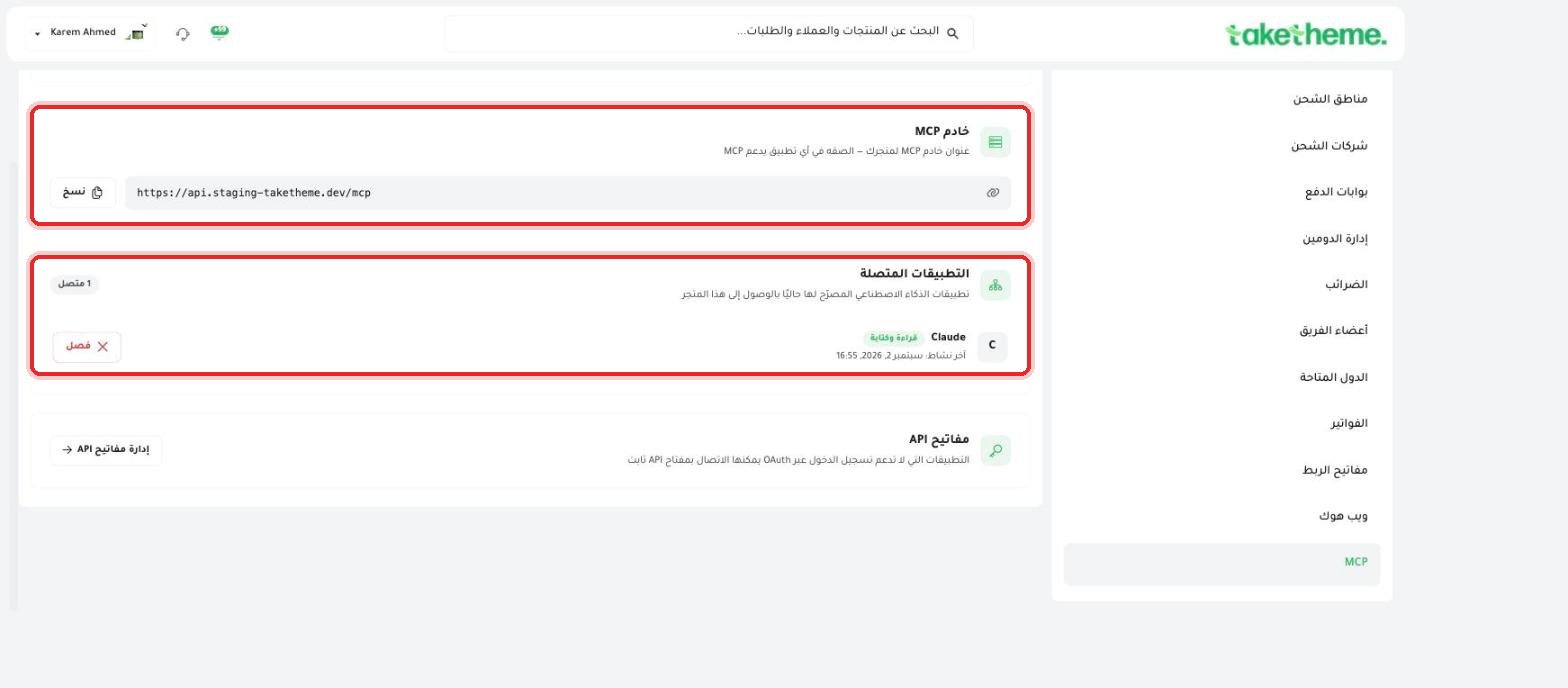
At the top of the page you'll find your store's MCP Server URL — a ready-made link (such as https://api.staging-taketheme.dev/mcp) with a Copy button, and the description reads: "Paste this into any app that supports MCP".
📍 MCP server URL with a copy button, and a list of connected apps
2
Copy the link, and open or paste it into the settings of any AI application that supports the MCP protocol (such as Claude) so it can read and interact with your store's data directly.
3
The Connected Apps section shows every app currently actually connected to your store — in the store we tested there was one connected app (Claude) with "Read and write" access, along with the date and time of its last activity.
4
If you want to disconnect a specific app from access to your store, click Disconnect next to its name — it will lose access immediately.
5
At the bottom of the page, the API Keys section explains an alternative for apps that don't support OAuth login: "They can connect with a static API key" — this is the same concept as the integration keys we explained in the article "API Keys for Developers" (in fact, the two keys we saw there, MCP codex and Claude MCP, are exactly this method).
💡 The "Read and write" access shown next to the connected Claude app means the app can edit your store's data, not just view it — review any AI app you connect to your store and make sure you trust it before connecting.
❓ Frequently Asked Questions
What actually is MCP?
MCP (Model Context Protocol) is a unified protocol that lets AI applications connect directly to systems like your store, read its data (products, orders, customers), or even take actions in it, instead of relying on a custom integration for every app.
Is connecting an AI app to my store safe?
Access happens via OAuth (secure login) or a static API key, and you can disconnect any app at any time from the "Connected Apps" list — but it's your responsibility to confirm the trustworthiness of any app before granting it write access to your store's data.