Creating, processing and refunding orders
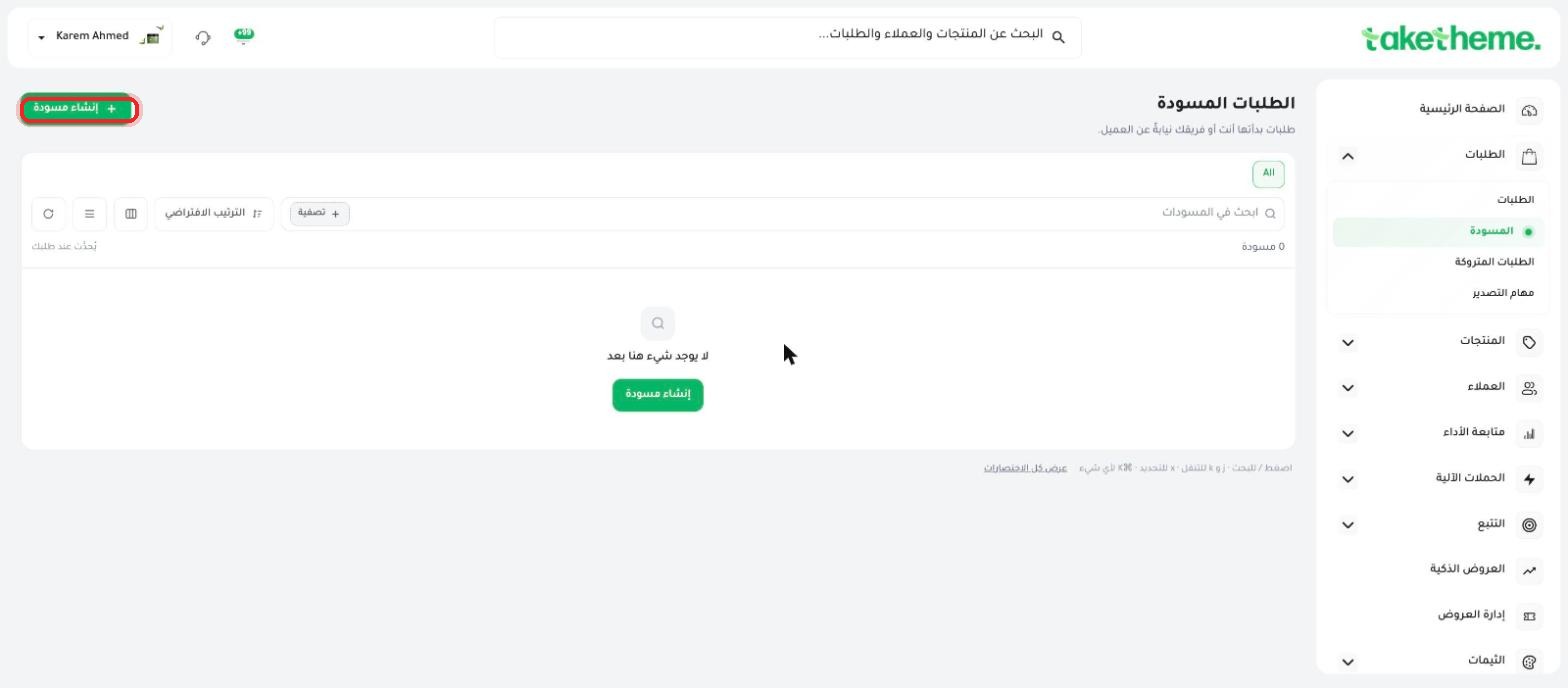 Creating an Order Manually and Draft Orders
Add an order for a customer manually from the dashboard, and understand the drafts flow.
Processing Orders and Updating Their StatusPrepare orders, collect payments, and track their status step by step.
Customer Order Notifications (WhatsApp / Email)Set the customer notification channels for every automation order event.
Refunding an Order (Refund)Return a customer's money partially or fully for a fully paid order.
Printing and Customizing an Order InvoicePrint order details or packing slips directly from the order page.
Filtering and Exporting OrdersSearch your orders with custom filters, and export them as a CSV file.
Managing Cash on Delivery OrdersEnable cash on delivery and set its limits, and collect its payments from the order page.
Tracking Export JobsTrack the status of every order export operation, instant and scheduled.
Frequently Asked Questions about OrdersQuick answers to the most common questions about managing orders.
Draft OrdersReview your automatically saved drafts, complete them, or delete them.
 Partial and Pending Orders
How to handle partial order fulfillment and track pending orders.
From the dashboard, go to Orders → Create Order, enter the customer's details, add products, then choose a payment method.
Change an order's status (processing, shipped, delivered) right from the order detail page; the customer gets an automatic notification on every update.
Open the order and click "Refund", then choose a full or partial refund as needed.
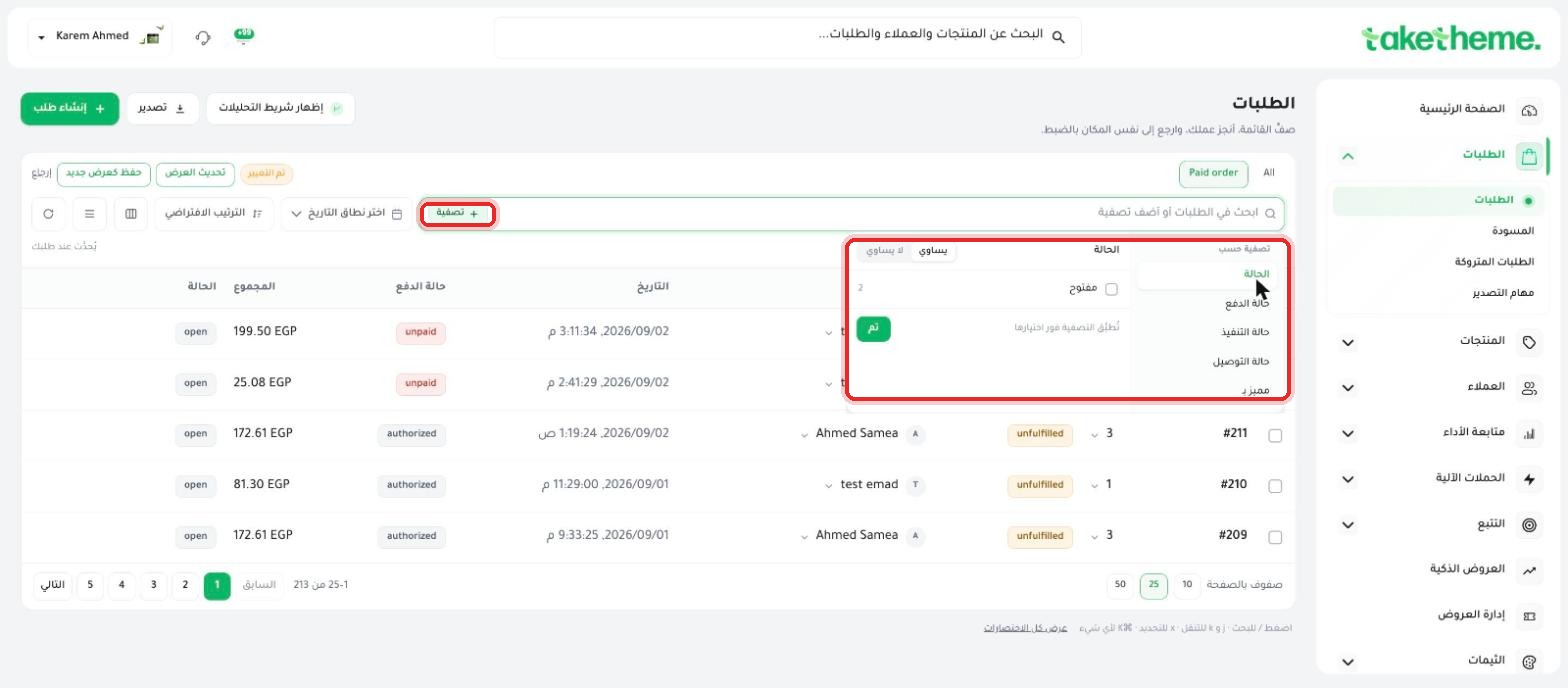
Use the status, date and payment-method filters at the top of the orders list, then export the results to Excel with one click.
Pending orders are waiting on payment or stock confirmation; review them from the "Pending" filter and complete them manually once the missing data is available.
ابدأ اليوم
3-day trial · no credit card

