Add new employees to your team and decide exactly what they can see and edit.
Last updated: 2026-09-09
🔧 Inviting a New Member to Your Team
1
From the sidebar, open Store Settings, then choose Team Members.
2
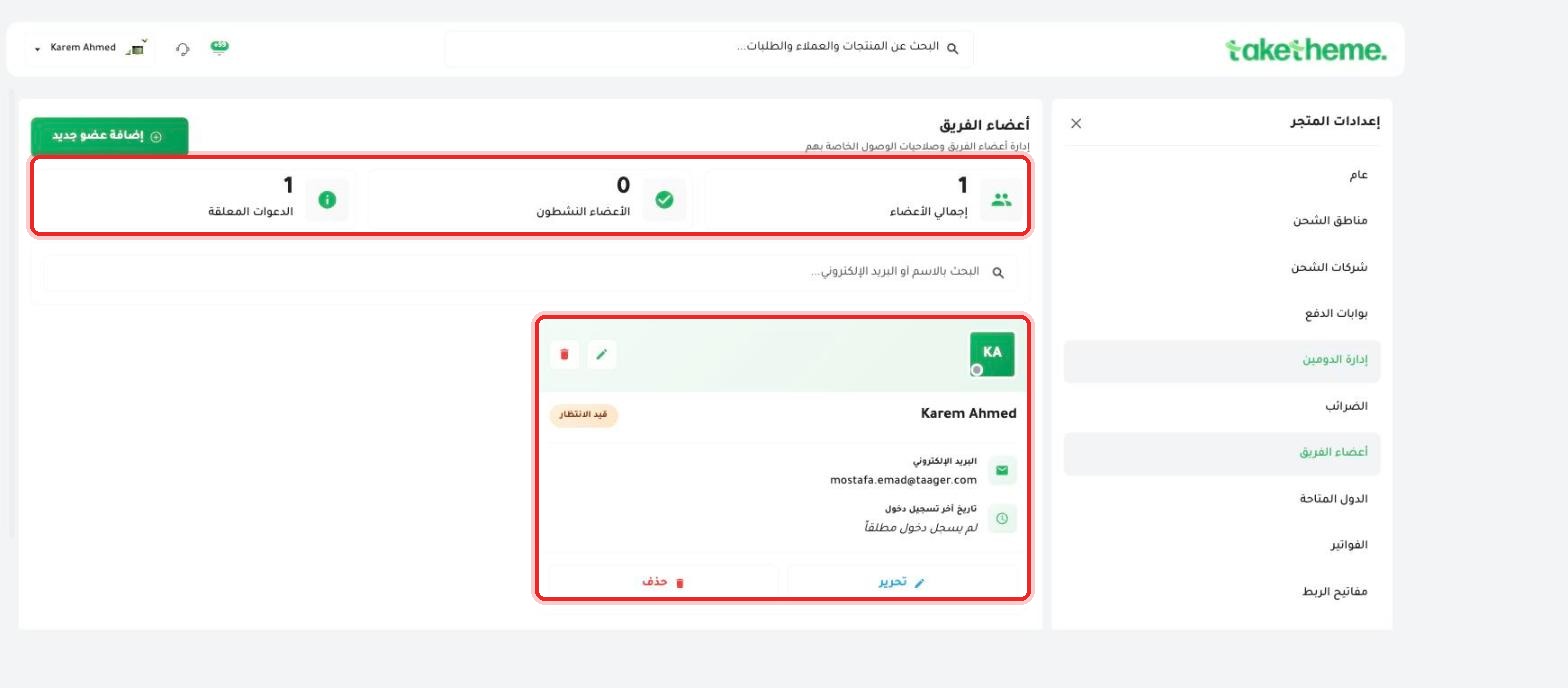
At the top of the page you'll find 3 counters: Total Members, Active Members, and Pending Invitations — plus a search box for name or email.
📍 Team members list with each member's status (active / pending) and an (Add New Member) button
3
Click Add New Member at the top left of the page to open the invitation form.
1 — First Name and Last Name (required).
2 — Email (required) — the invitation to join is sent to this address.
3 — Phone Number (optional).
4
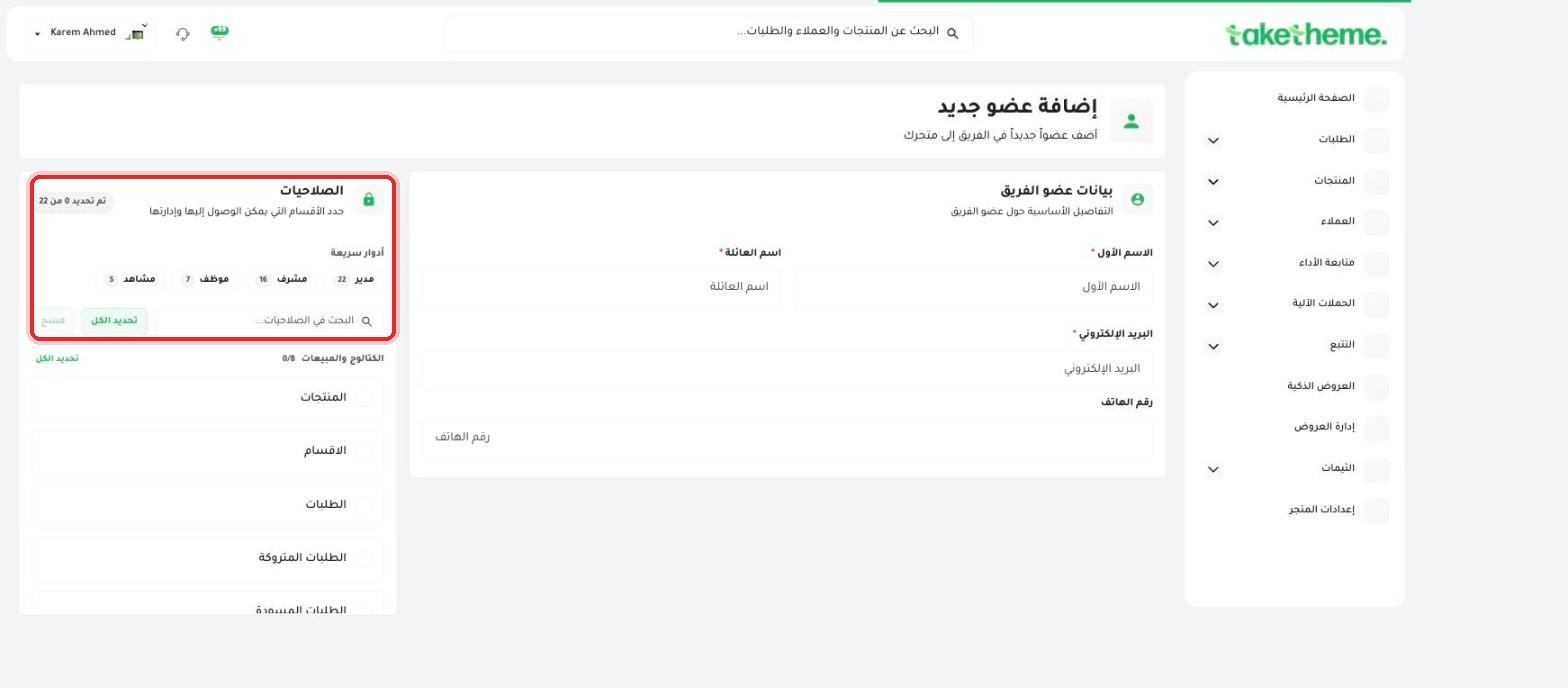
Next to the member's details, you'll find the full Permissions section — select the sections you want this member to access right from the same screen (see the article "Roles and Permissions in Detail" for an explanation of every section).
📍 Permissions section with a counter (0 of 22 selected) and ready-made quick roles
5
Save the invitation — the new member will appear in the list with Pending status until they open the invitation link from their email and log in for the first time.
💡 A member you invited who has already logged in but hasn't yet activated their permissions will still show as "Pending" even after logging in — check the "Last Login" column next to each member to confirm whether they've actually logged in or not.
❓ Frequently Asked Questions
Can I invite a member with the same email address as mine?
No, every member needs a different email address — the email is the primary identifier for logging in and receiving notifications.
How do I edit the permissions of an existing member?
From the team members list, click the pencil (edit) icon next to the member's name, and it will open the same permissions screen so you can edit it at any time.
Can I permanently remove a member?
Yes, a red (Delete) button is available next to each member in the list — deleting a member immediately revokes their access to every section of the dashboard.
Team MembersInvitationsPermissionsGeneral Settings