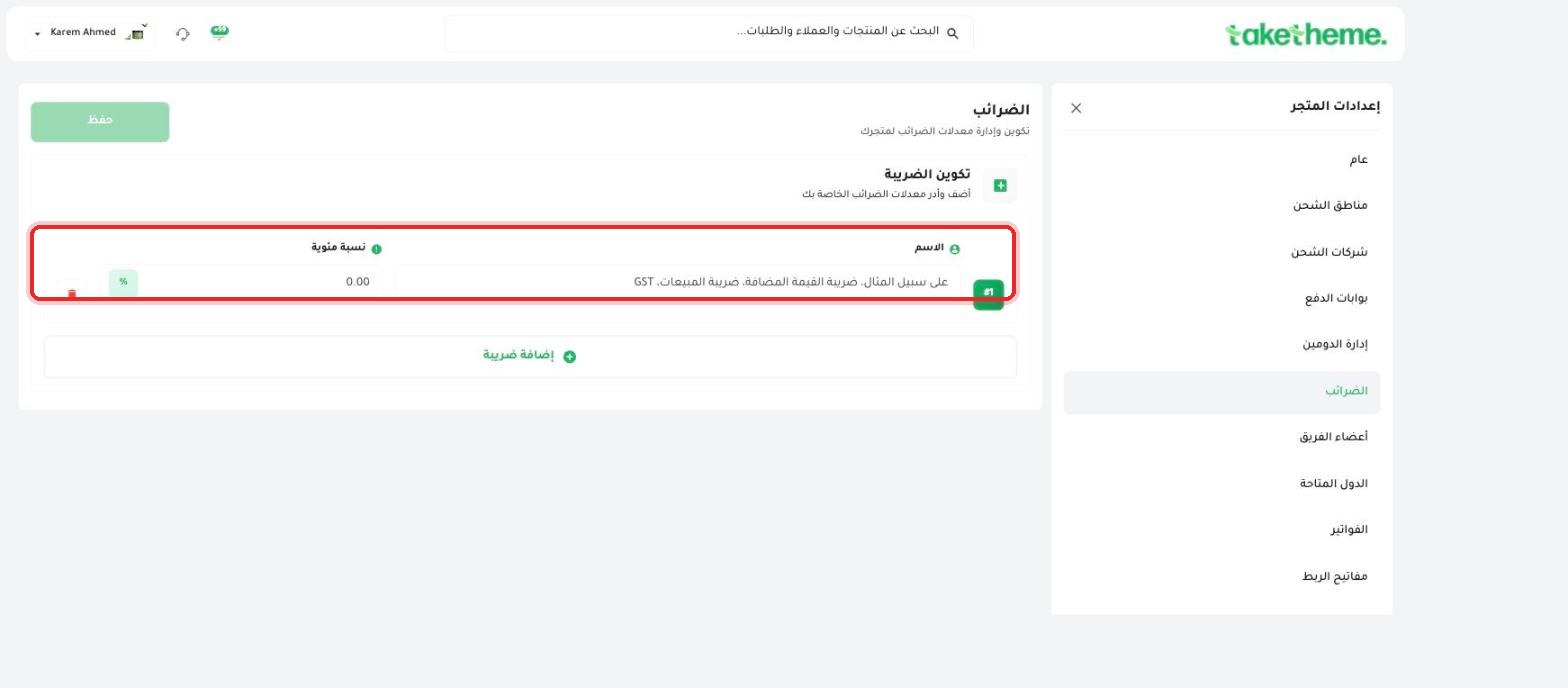
Add tax rates on your sales from the tax settings.
Last updated: 2026-09-09
🔧 Setting Up Tax Rates on Your Sales
1
From the sidebar, open Store Settings, then choose Taxes.
2
You'll find a Tax Configuration section with two fields per tax: Name (with an example hint: "GST, VAT, sales tax") and a percentage for the value itself.
📍 Default tax row at 0.00% with an empty name field, and an (Add Tax) button
3
Edit the percentage of the default tax (it was 0.00% in the store we tested) and give it a clear name, such as "VAT".
4
Click + Add Tax if you need to add more than one type of tax (for example, one sales tax for certain products and another for other products).
5
After finishing all your edits, click the Save button at the top left of the page.
💡 Every tax you add gets a sequential number (#1, #2...) and you can delete it at any time using the red trash icon next to it.
❓ Frequently Asked Questions
Is the tax applied automatically to all products?
We did not verify whether there's an option to assign a specific tax to certain products only from within the taxes screen itself — it most likely applies at the whole-store level unless a separate product-level exception setting exists.
Does the tax show separately to the customer at checkout?
We did not reach the actual customer-facing checkout screen in this session to confirm how the tax is displayed (included in the price or added on at the final step) — try a test order to confirm for yourself after setup.