Create static pages like (About Us) and (Return Policy) and control their visibility.
Last updated: 2026-09-09
🔧 Creating a new informational page (about us, policies, contact)
1
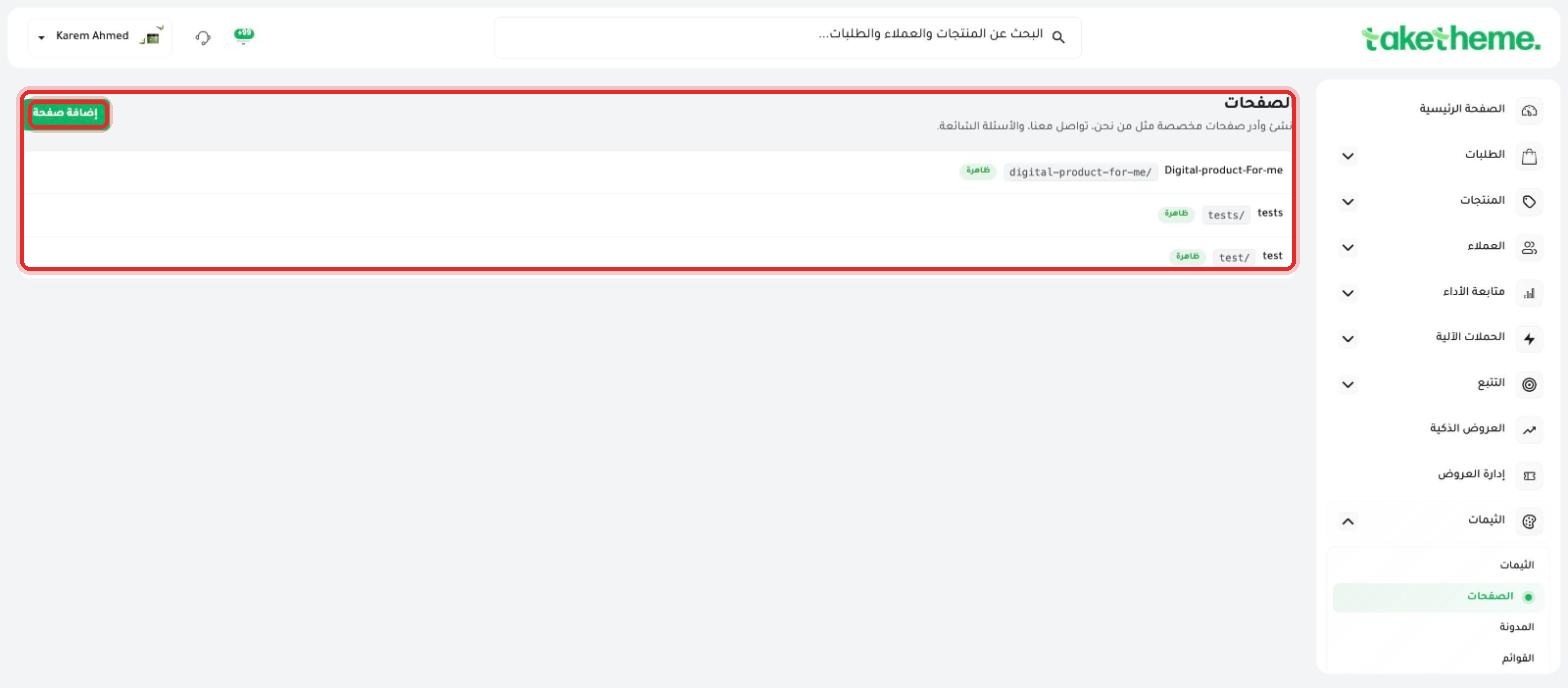
From the sidebar, open Themes then click the sub-item Pages.
2
You'll find a list of all the pages currently in your store, with each page's link (slug) and visibility status (visible/hidden). In the store we tested there were 3 pages, all visible.
📍 The pages list with each page's link and (visible) status, and the (Add page) button at the top left
3
Click Add page at the top of the page to open the new page creation form.
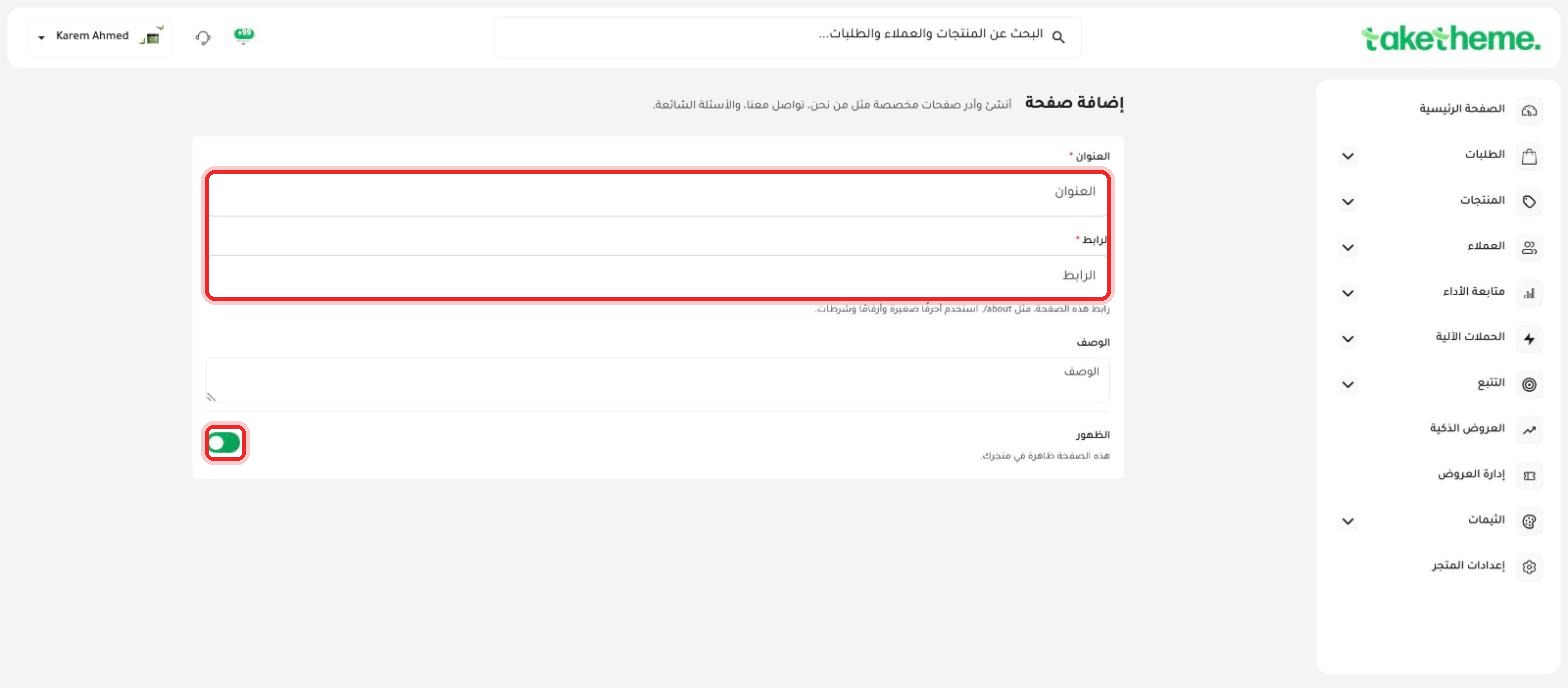
1 — Title (required): the page name as it will appear to customers, such as "About Us" or "Return Policy".
2 — URL (required): the part that will appear in the URL after your store's name, like about or return-policy. The note below the field recommends using lowercase letters, numbers, and hyphens only.
3 — Description: optional descriptive text for the page.
4 — Visibility: a toggle switch that controls whether the page is visible to customers in your store or not.
📍 The add page form: title, URL, description, and the visibility toggle
4
After filling in the fields, save the page — you can then open it from the theme editor if you want to add content and sections to it, just like any other page in your store.
💡 The (Visibility) toggle is very useful if you want to prepare a page before announcing it — leave it off and it will remain accessible by its link only, not appearing in any navigation menu or search, until you turn it on.
❓ Frequently Asked Questions
Do these pages automatically appear in the site's navigation menu?
No, creating a page only gives it a static link — you need to add it manually to the navigation menu from the Menus section so it appears in the header or footer.
Can I add formatted content (images, paragraphs, headings) inside the page?
Based on these pages being editable elements in the theme editor, you can most likely add sections and formatted content inside them the same way you edit any other page — we haven't directly tested this full flow in this session.
What's the difference between Pages here and blog posts?
Pages are meant for static content (like policies or about us), while the blog is meant for articles and recurring, regularly updated content — check the "Managing Your Store's Blog" article for details.