Change your store's color schemes and fonts from the theme settings without writing a single line of code.
Last updated: 2026-09-09
🔧 Changing your store's colors
1
From the theme editor, click the gear icon (⚙️) at the top left of the screen to open Theme settings.
2
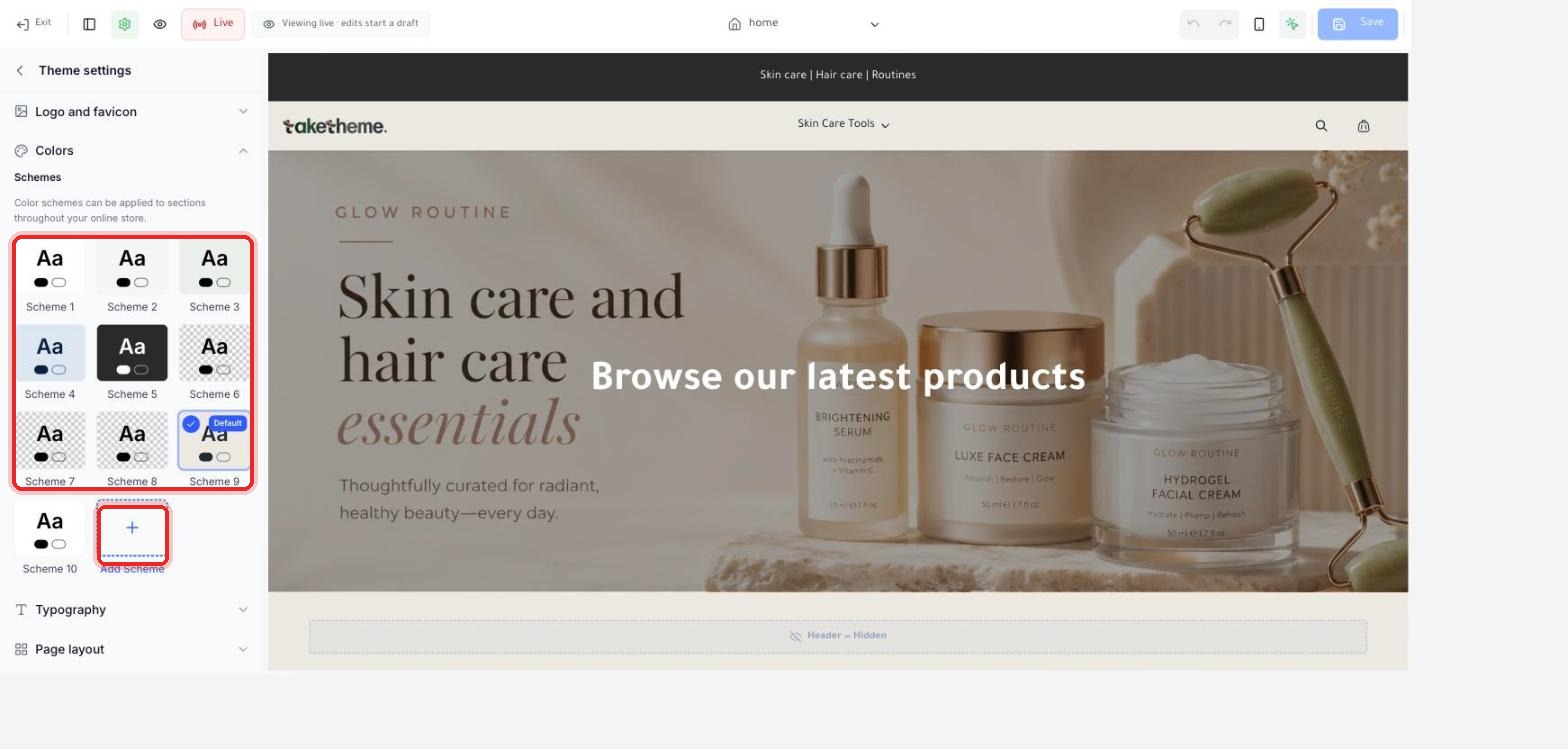
Choose Colors — you'll find the store manages colors through ready-made Color schemes — 10 numbered schemes (Scheme 1 through Scheme 10), one of which is marked as Default and is automatically applied to new sections.
📍 Grid of the ten color schemes, and the (Add Scheme) button to create a new scheme
3
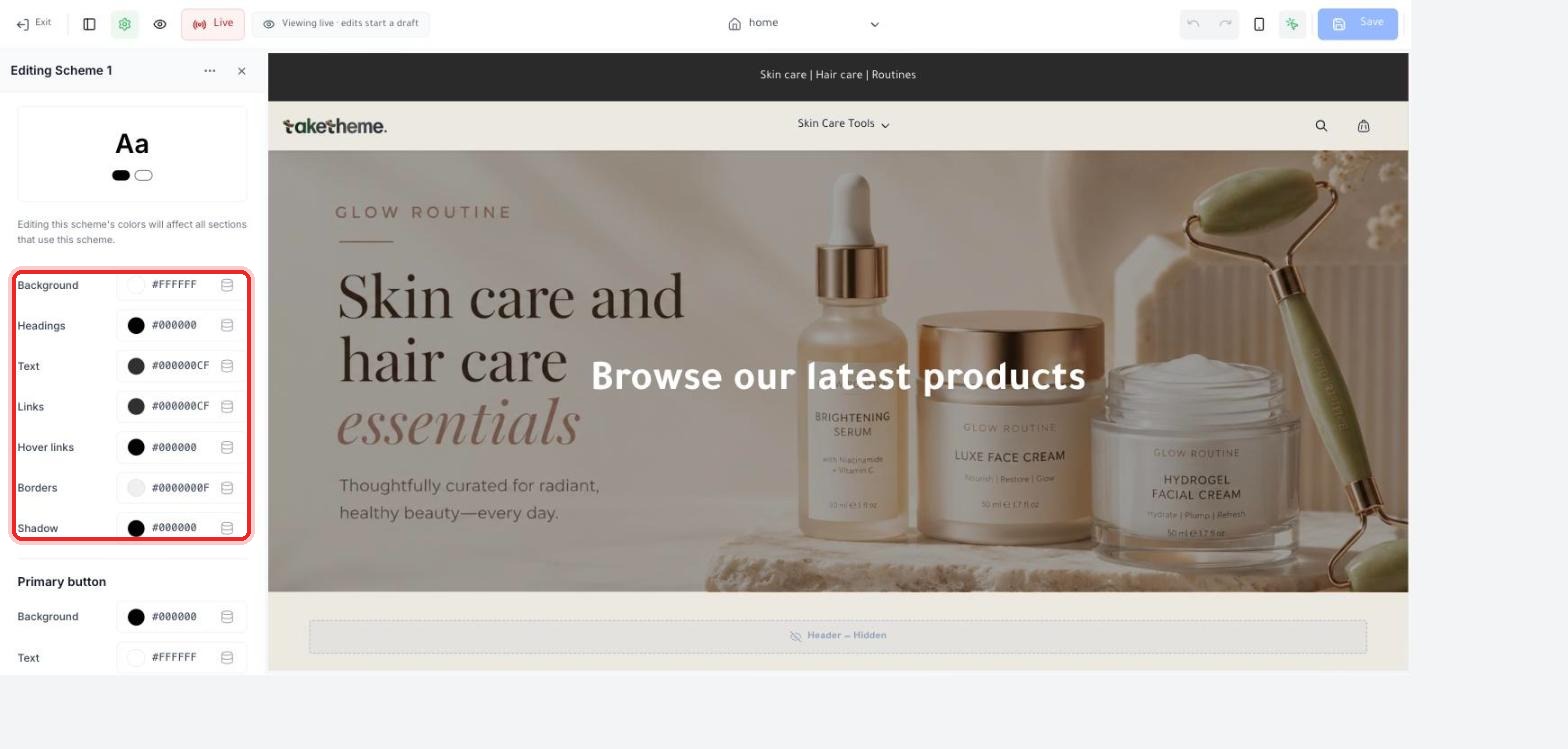
Click any scheme to open its details — you'll find separate color fields for each element: Background, Headings, Text, Links, Hover links, Borders, Shadow, and Primary button colors kept separate from the rest.
📍 Hex color fields for each element within the scheme — you can type the code manually or choose from the color picker
4
After adjusting the colors you want, go back to any section on the page and assign it the same scheme from its properties so the new colors apply to it.
💡 Every section in the theme can take a different color scheme from the rest of the page — meaning you can make the Header dark (Scheme 5 for example) and keep the rest of the page light, without touching any code.
🔧 Changing fonts
5
From the same Theme settings menu, choose Typography.
6
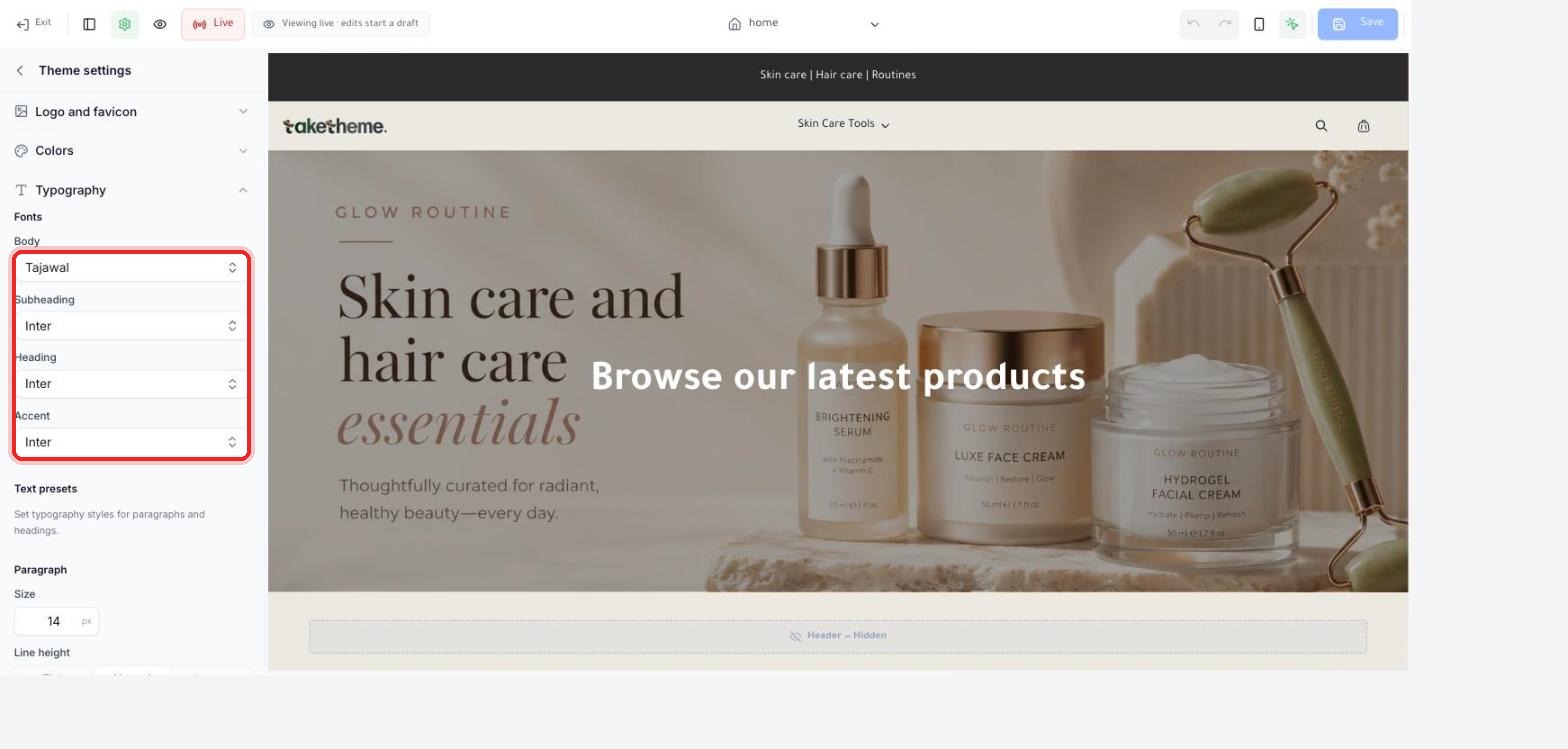
You'll find 4 separate font roles you can change from a dropdown: Body (the store's general text, set to the Tajawal font in the theme we tested), Subheading, Heading, and Accent (all three set to Inter).
📍 Font selection dropdowns for each role (Body / Subheading / Heading / Accent)
7
Below the font list you'll find a Text presets section to set the size and line height for each paragraph or heading type directly in pixels.
💡 If your store targets a fully Arabic-speaking audience, make sure your Body font clearly supports Arabic (Tajawal is a good example and is used by default) — fonts like Inter are primarily designed for English and may not support Arabic in every role.
❓ Frequently Asked Questions
If I edit an existing color scheme, will it change across all sections?
Yes, editing a color scheme (like Scheme 1) applies to every section in your store that's linked to that same scheme — not just the section you opened it from.
Can I add a custom font that isn't in the list?
The font list we saw shows a set of ready-made fonts (like Tajawal and Inter) you pick from a dropdown. We haven't verified whether there's a custom font upload option within this interface.
Does changing colors or fonts require publishing to show for customers?
Edits are saved as a draft as soon as you click Save, and to actually appear for customers you need to publish the version — just like any other edit in the theme editor.