Create blog posts for your store from the new Blog section under Themes.
Last updated: 2026-09-09
🔧 Writing your store's first blog post
1
From the sidebar, open Themes then choose the sub-item Blog.
2
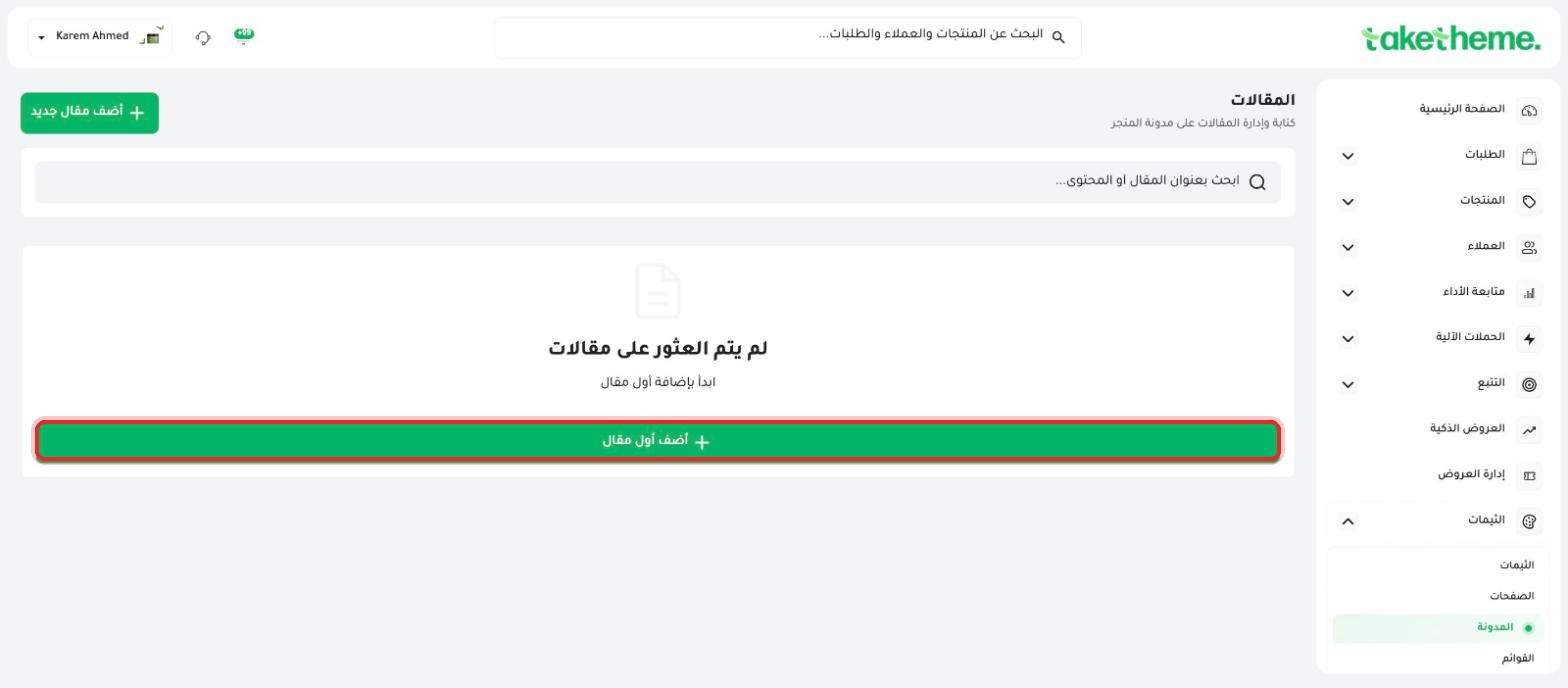
The store we tested had no published posts yet, so we saw a clear empty state titled "No posts found" with the guiding text "Start by adding your first post".
📍 The empty state of the blog page with the (Add first post) button
3
Click Add new post (the green button at the top of the page or inside the empty state) to start writing your first post.
4
The page itself has a dedicated search field labeled "Search by post title or content" — useful once you have many posts and want to find one quickly.
⚠️ Verification note: Since the demo store had no published posts, we weren't able to document the post editor screen in detail (title, content, featured image, publisher fields, etc.) directly from within the actual dashboard. These steps are based on what we saw on the empty list screen only.
💡 An active, up-to-date blog with posts relevant to your store's category helps improve your store's visibility in search results (SEO) and builds customer trust — especially if your products need explanation or usage tips.
❓ Frequently Asked Questions
Do blog posts automatically appear in the navigation menu?
Just like informational pages, you need to add the blog link manually to the navigation menu from the Menus section so customers can reach it easily.
Is there a maximum number of posts?
We haven't verified whether there's a maximum post limit within this interface — if you have a question about your plan's specific limits, check the Plans page or contact support.