Get familiar with the theme editor interface and how to navigate it before you start customizing your store's design.
Last updated: 2026-09-09
🔧 Getting familiar with the visual builder interface
1
From the Themes page, click Customize theme above the published theme — this opens the Theme Builder on a separate URL (/builder).
2
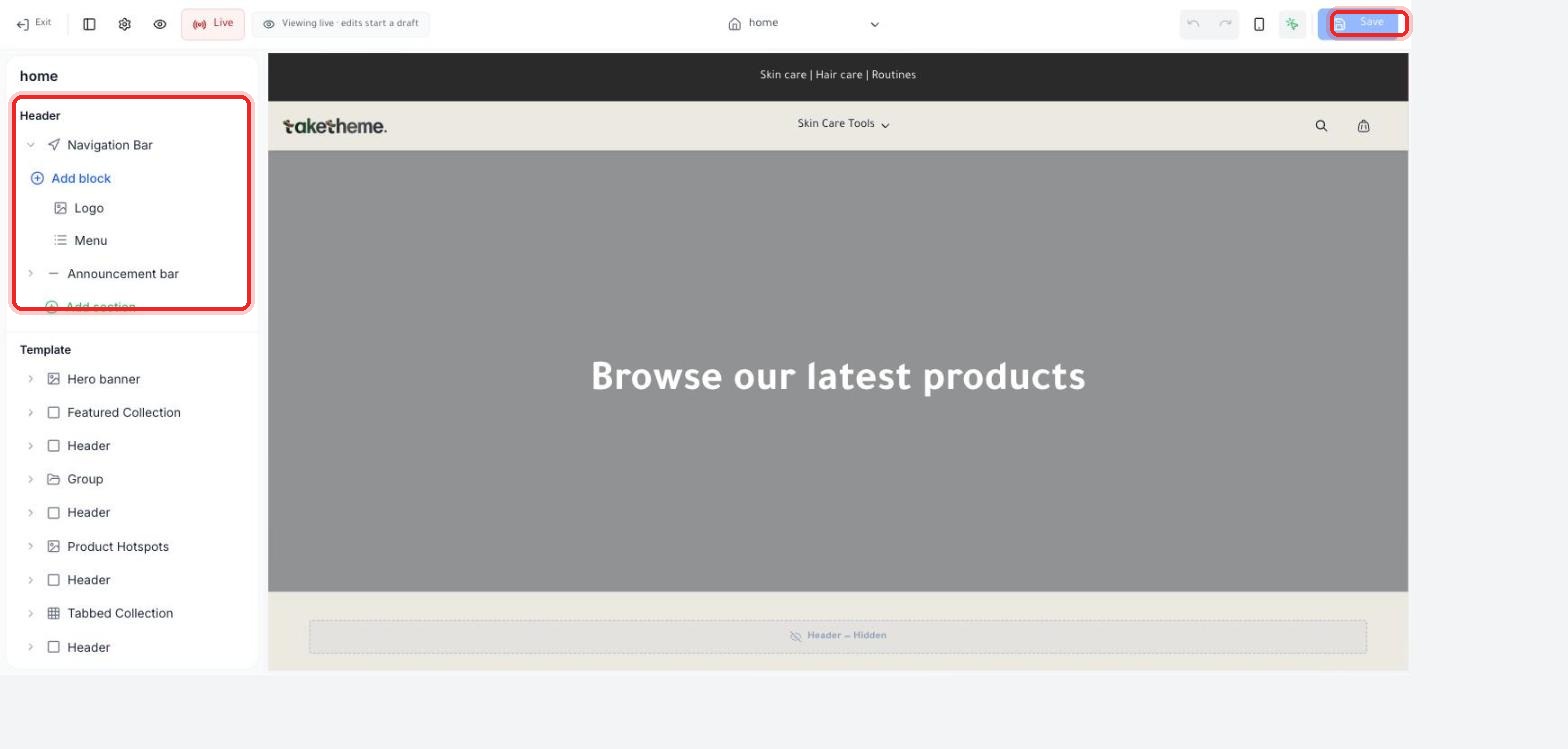
On the left you'll find the Layer tree: a Header section (navigation bar, logo, menu, announcement bar), and below it a Template section containing all the sections in order, like Hero banner, Featured Collection, Tabbed Collection, and others.
📍 The layer tree on the left, and the Save button at the top right of the screen
3
In the middle you'll see a Live preview of your storefront exactly as it will appear to customers. Any edit you make updates instantly in the preview.
4
At the top center of the page you'll find a page-selector menu (home/product/collection...) to edit any page in your store, not just the homepage.
⚠️ Verification note: The builder interface itself (section names, buttons, save messages) appears in English even when the rest of the dashboard is fully in Arabic — this is the platform's current behavior in the staging environment, not an error in this article.
💡 We noticed a badge (Live · Viewing live · edits start a draft) at the top of the screen — meaning you're currently editing the published version directly, and any change automatically turns into a Draft until you click Publish. You'll find more details on this in the "Switching Themes Without Losing Your Data" article.
❓ Frequently Asked Questions
Do I need design or coding knowledge to use the builder?
No, the builder is built on drag & drop and ready-made selection menus — basic edits (colors, text, section order) are accessible to anyone without technical expertise.
What's the difference between Sections and Blocks?
A Section is a large unit like Hero banner or Featured Collection, and inside each section are smaller Blocks like a logo or a menu item — you can add/remove/reorder blocks within each section.
Are edits saved automatically?
No, you must explicitly click the Save button at the top right of the screen to save your edits — until you click it, changes remain unsaved.
Visual BuilderDesignThemesGetting Started with the Builder