
The Complete Launch Guide from Scratch
All ten store setup steps, straight from your dashboard home page.
Last updated: 2026-09-27
📌 This article is based on the real «Complete your store setup» widget on the dashboard home page — it appears automatically for stores that haven't finished every launch step yet, and disappears once all ten steps are complete.
🔧 The ten steps to launch your store
1
After creating your account, you'll find a widget called «Complete your store setup» at the top of the Home page, with a completion percentage and an estimated time remaining — it's your main guide until everything is done.
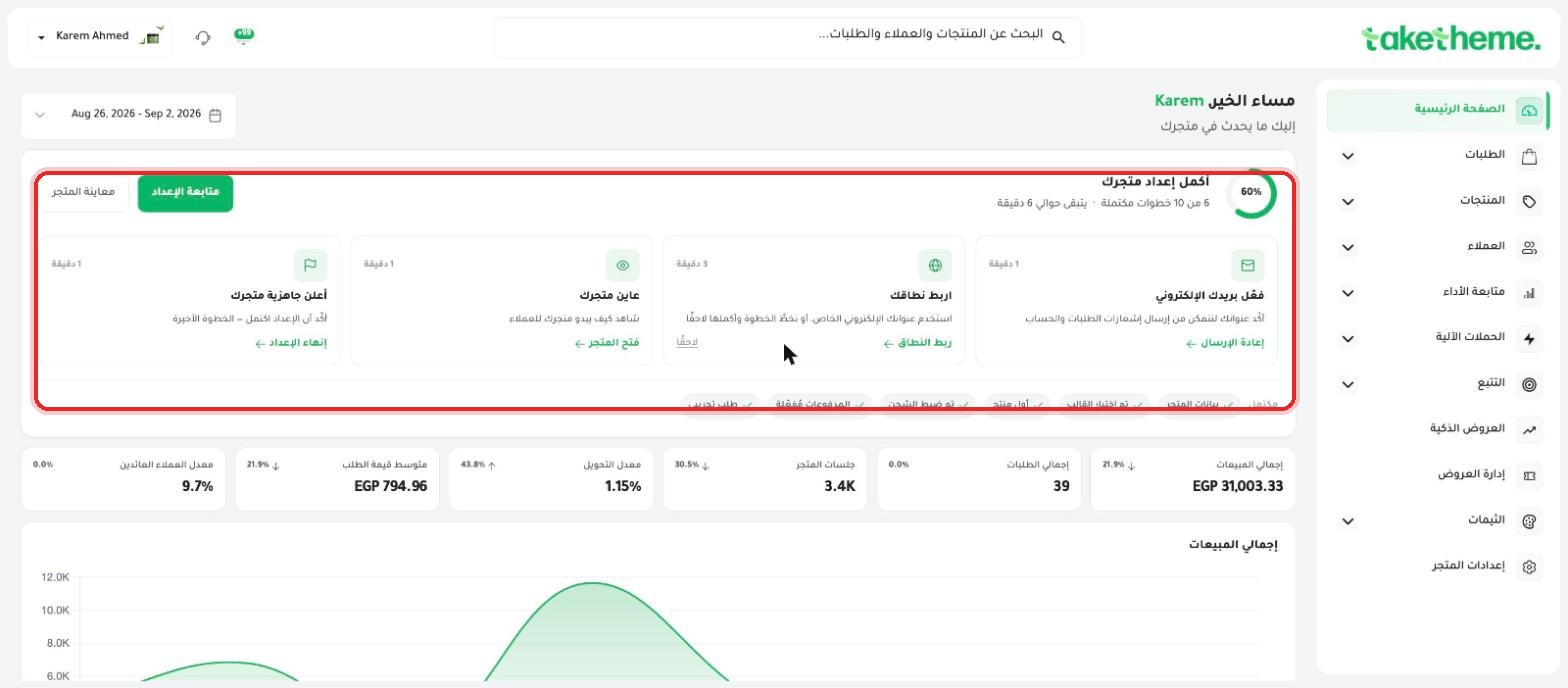
📍 The «Complete your store setup» widget on the Home page — 6 of 10 steps complete in this example
2
The first six steps (the Completed section under the widget) are checked off automatically as you work on your store: Store details, Theme selected, First product (you've uploaded your first product — see «Uploading Your First Products»), Shipping configured, Payments enabled, Test order.
3
Four steps still need to be done manually from the same widget: Verify your email (confirm your address from the link you received, or click «Resend» if you need it sent again — takes a minute), Connect your domain (connect your own domain via the «Connect domain» button — see «Connecting a Domain to Your Store» — or click «Later» to postpone it and use the free subdomain for now; takes 3 minutes).
4
Preview your store — click «Open store» to see your store the way customers will before you actually publish it (one minute).
5
Announce your store is ready — the final step: click «Finish setup» to confirm setup is really done and your store is ready for real customers (one minute).
💡 There's no required order for the ten steps — do whatever suits you first, and the widget updates the percentage automatically every time you finish a step. The widget disappears from the Home page automatically as soon as you reach 10 of 10.
❓ Frequently asked questions
Do I have to finish all ten steps before I can take real orders?
It's best to at least have payments enabled, shipping configured and your first product uploaded before opening your store to customers, but there's no technical lock stopping you from selling before every step is complete.
The «Complete your store setup» widget disappeared from the Home page — how do I get it back?
It disappears automatically once all ten steps are complete. There's no need to bring it back — your store is fully ready.
Can I skip the domain step and just use the subdomain?
Yes — click «Later» next to «Connect your domain» and keep using the free subdomain until your own domain is ready.

ابدأ اليوم
Plans from EGP 599/month — 0% commission
3-day trial · no credit card