Create discount codes across four types, or use ready-made offers.
Last updated: 2026-09-09
🔧 Steps to create a discount code
1
From the sidebar, open Marketing → Manage Offers, and click + Create discount.
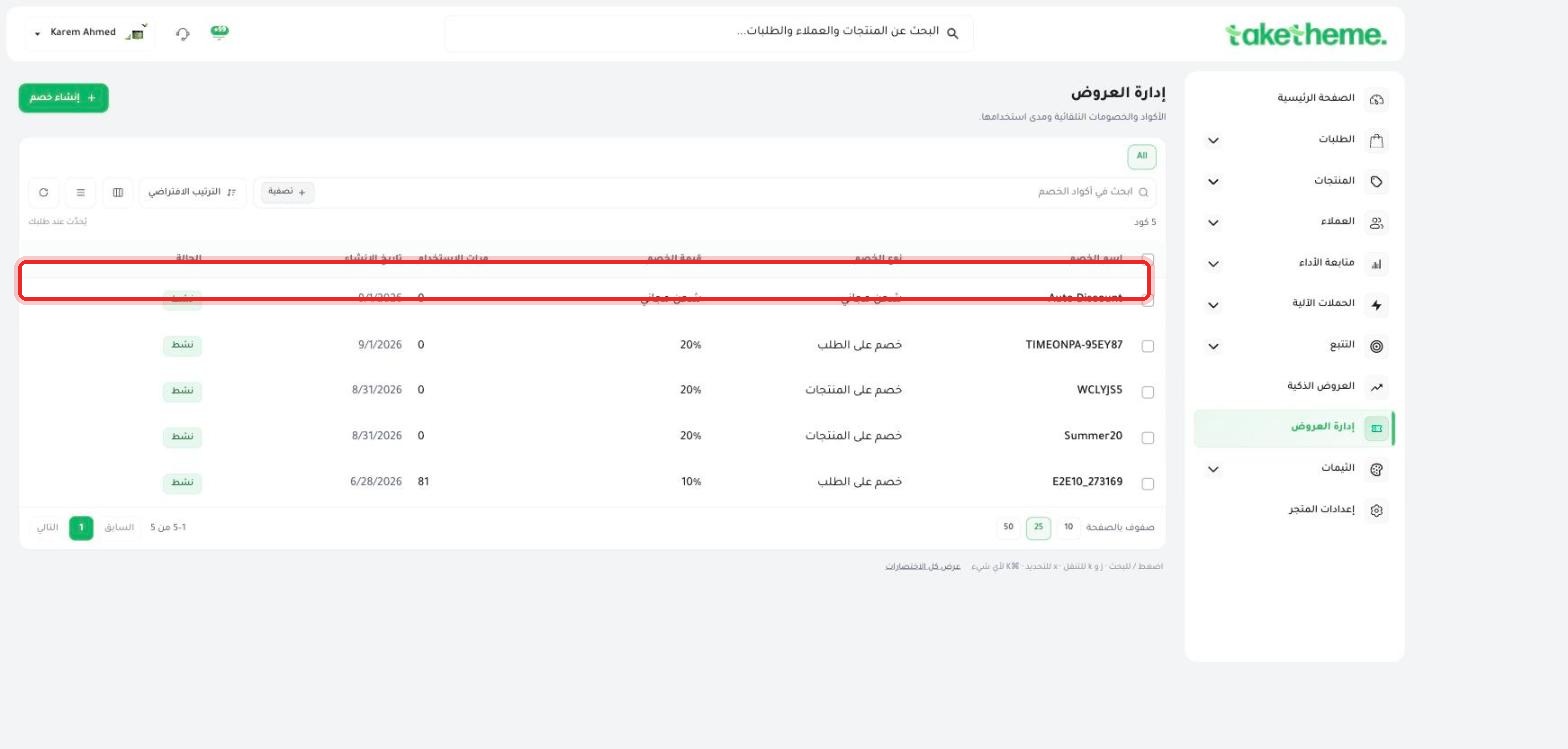
📍 Manage Offers page — list of active discount codes with each code's type, value, and usage count
2
In the creation window, choose either a ready-made offer usable right away, or start from a blank discount type:
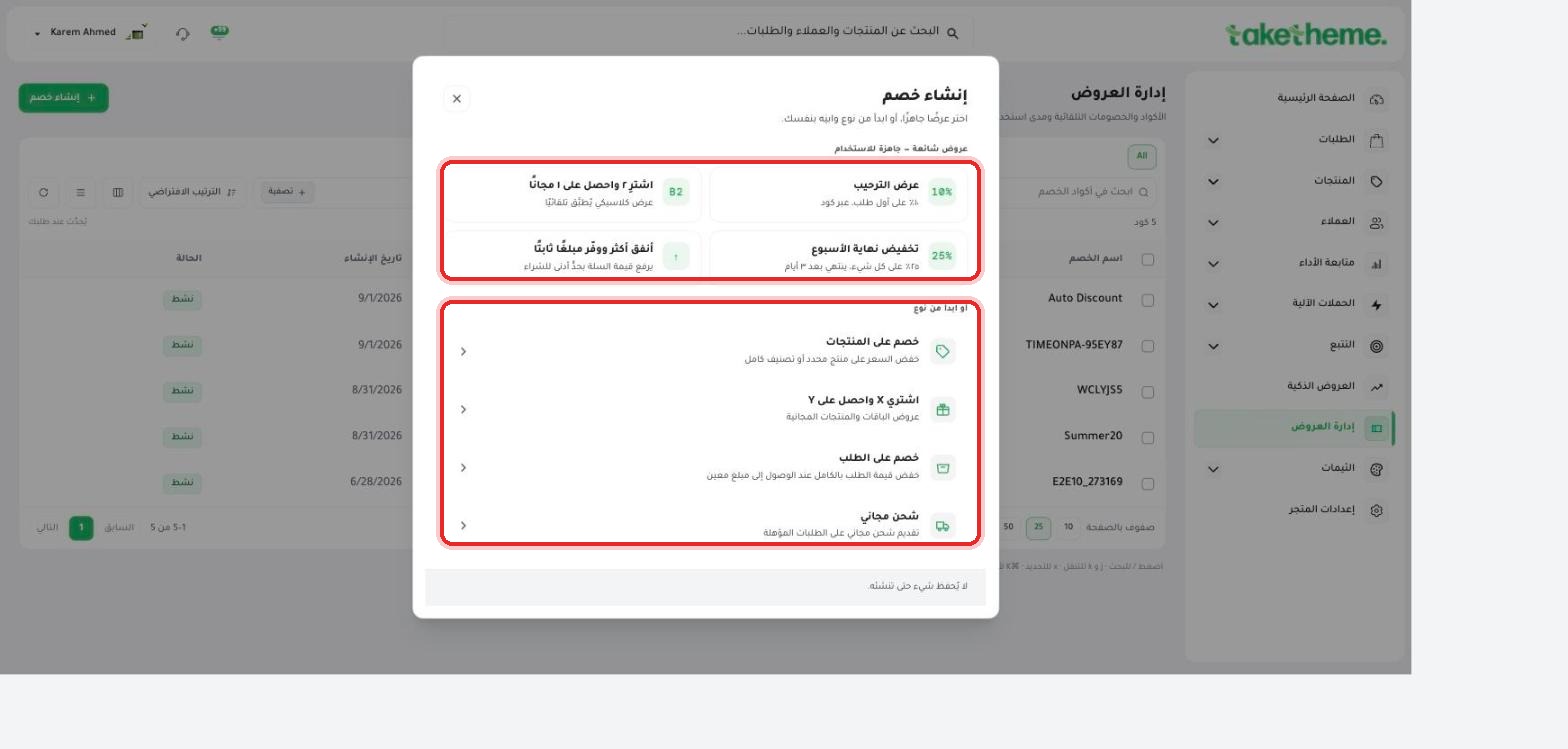
📍 Discount creation window — ready-made offers (Buy 2 get 1, Welcome offer, Weekend sale) and the four discount types
Ready-made offers: Buy 2 get 1 free, Welcome offer (10% off first order), Weekend sale (25% off for 3 days), Spend more and save a fixed amount.
Product discount: lower the price on a specific product or an entire category.
Buy X Get Y: bundle offers and free products.
Order discount: lower the entire order value once it reaches a certain amount.
Free shipping: offer free shipping on eligible orders.
3
Set the code's details (name, value, usage conditions, expiration date) and save.
💡 Codes appear instantly on the Manage Offers page with an "Active" status, and you can track each code's usage count from the same list — we noticed one code in the test store that had been used 81 times as a live example.
❓ Frequently Asked Questions
What's the difference between coupons and smart offers?
Coupons (Discounts) are codes the customer enters manually, or automatic discounts with simple conditions, while Smart Offers appear automatically at specific points in the experience (product page, cart drawer, thank-you page) without a code.
Can I limit how many times a code can be used?
Yes, when creating the discount you can set a maximum total usage count, or limit it to once per customer.