Increase order value with an additional offer right after checkout.
Last updated: 2026-09-09
🔧 Steps to create a post-purchase offer
1
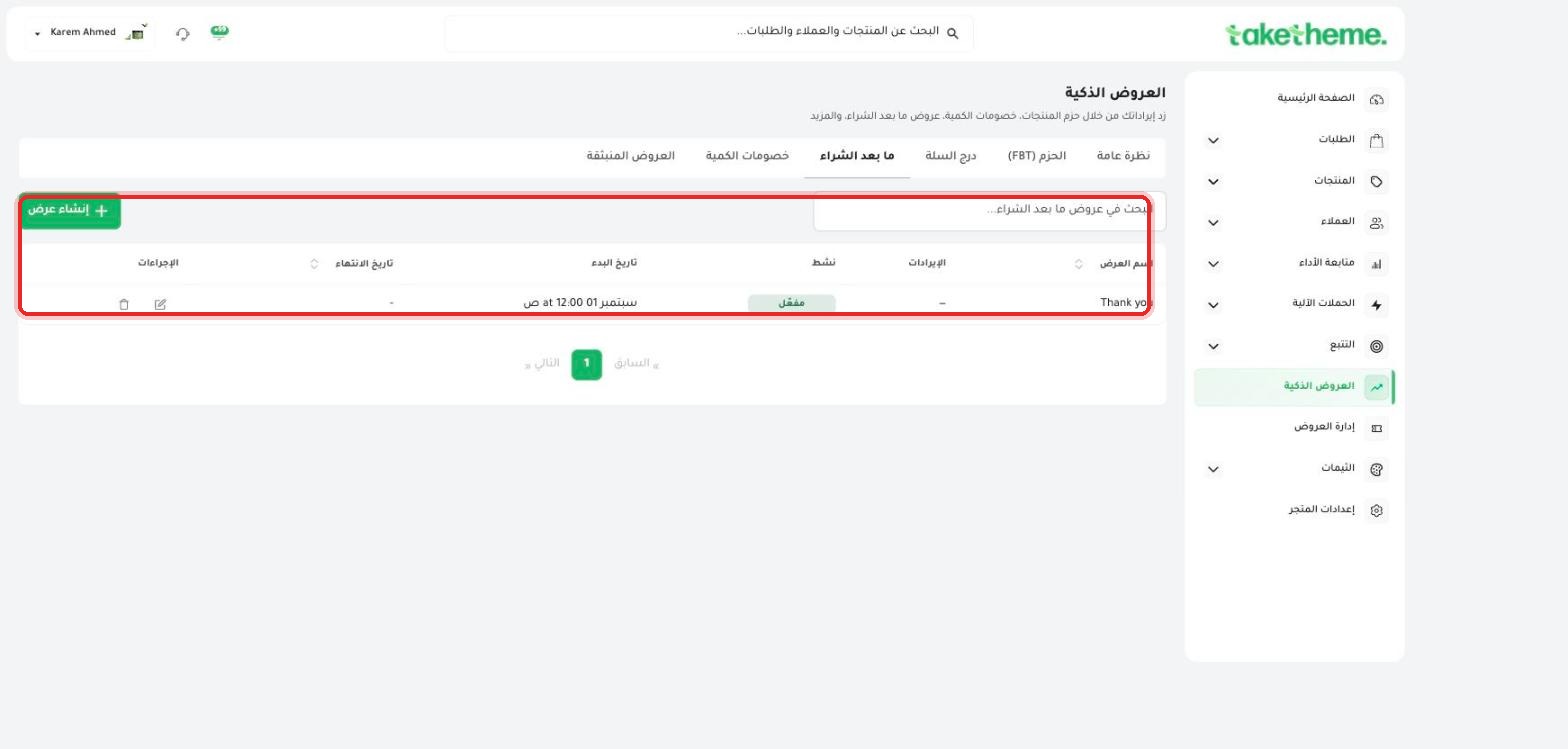
From Marketing → Smart Offers, open the Post-Purchase tab.
📍 Post-Purchase tab — list of offers, with a "Thank you" example present in the test store
2
Click Create offer, and choose the product (or products) you want to offer the customer right after checkout is completed, before they see the final order confirmation page.
3
Set the offer type (a discount on the suggested product, or offering it at full price), and set the display conditions (all orders, or orders containing specific products).
4
Save and enable the offer.
💡 The post-purchase offer appears at one single moment: right after the customer pays and before they see the "Your order is confirmed" page — a last chance to increase order value without disrupting the core purchase experience.
❓ Frequently Asked Questions
Does the customer accepting the offer require a separate second payment?
No, the offer is added to the same order and charged with the same payment the customer already made — there's no additional separate payment step.
Is this the same as pre-checkout Upsell?
No, this is specifically Post-Purchase Upsell (right after checkout). If you need to suggest products before the customer reaches checkout, use "Bundles (FBT)" or "Cart Drawer" offers.