Send targeted marketing campaigns to specific customer segments.
Last updated: 2026-09-09
🔧 Steps to create a segment campaign
1
From Automated Campaigns → + New automated campaign, choose Segment campaign — the only campaign type sent manually (not automatic) among the available campaign types.
2
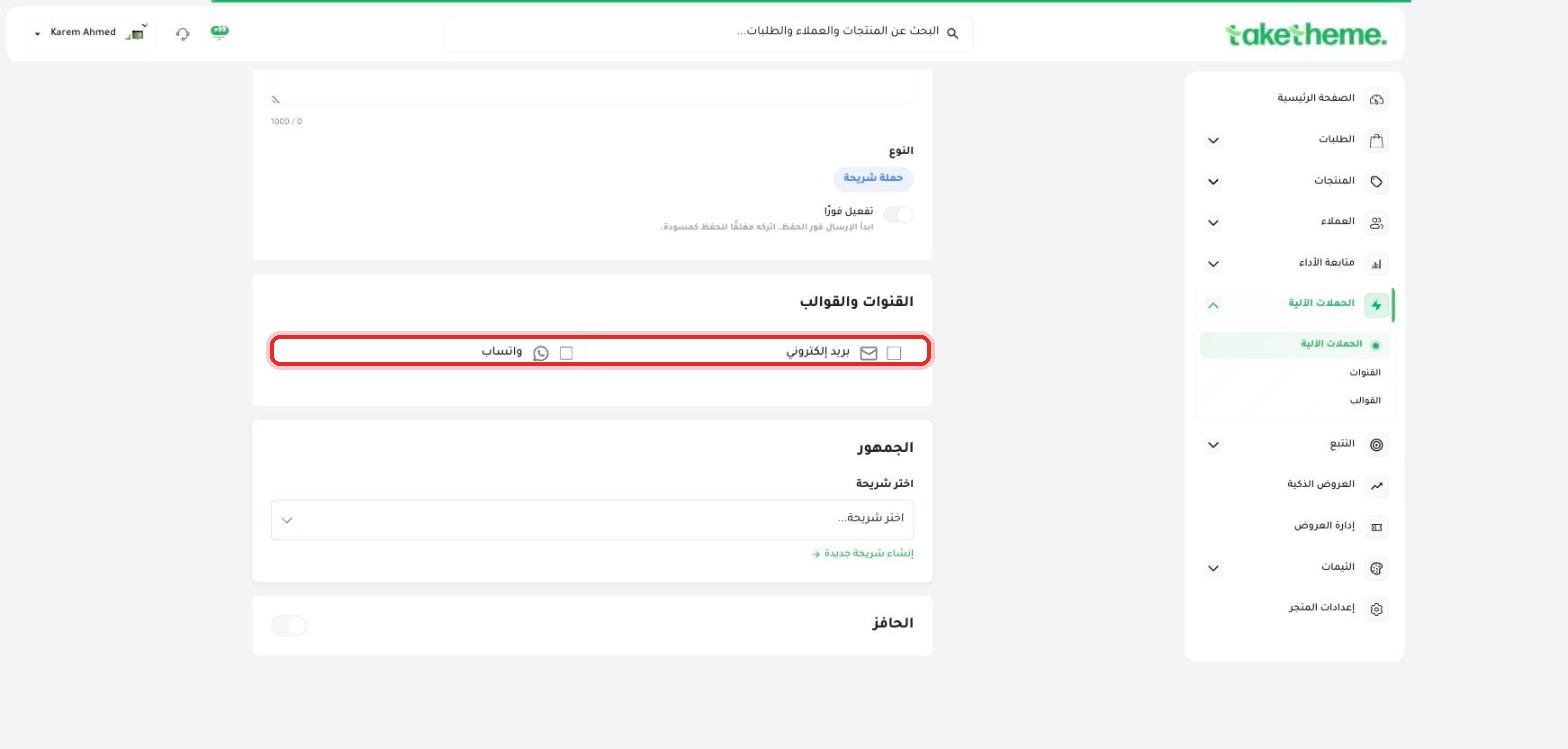
Write a name and description for the campaign, and choose the channels: email and/or WhatsApp.
📍 Channels and templates section in a segment campaign — WhatsApp and email only
3
In the Audience section, choose an existing customer segment from the dropdown list, or click Create new segment to build a custom segment with new rules on the spot.
4
(Optional) Enable the Incentive section to attach a discount coupon to the campaign message.
5
Enable Activate immediately and save to send the campaign, or save it as a draft to review later.
💡 This is the best practical use of the "Segments" feature we explained in the Customers section — instead of sending one message to all your customers, send to a targeted segment only (such as "top spenders" or "customers with no recent orders") with a message tailored to them.
❓ Frequently Asked Questions
How do I create a new customer segment before the campaign?
From the Audience section in the segment campaign creation form itself, click "Create new segment", or see the "Segmenting customers for targeted campaigns" article in the Customers section for detailed steps.
Does a segment campaign repeat automatically?
No, a segment campaign is a one-time manual send — if you want to send it again, you need to create a new campaign or edit the existing one and reactivate it.