Review your automatically saved drafts, complete them, or delete them.
Last updated: 2026-09-09
🔧 Steps to manage draft orders
1
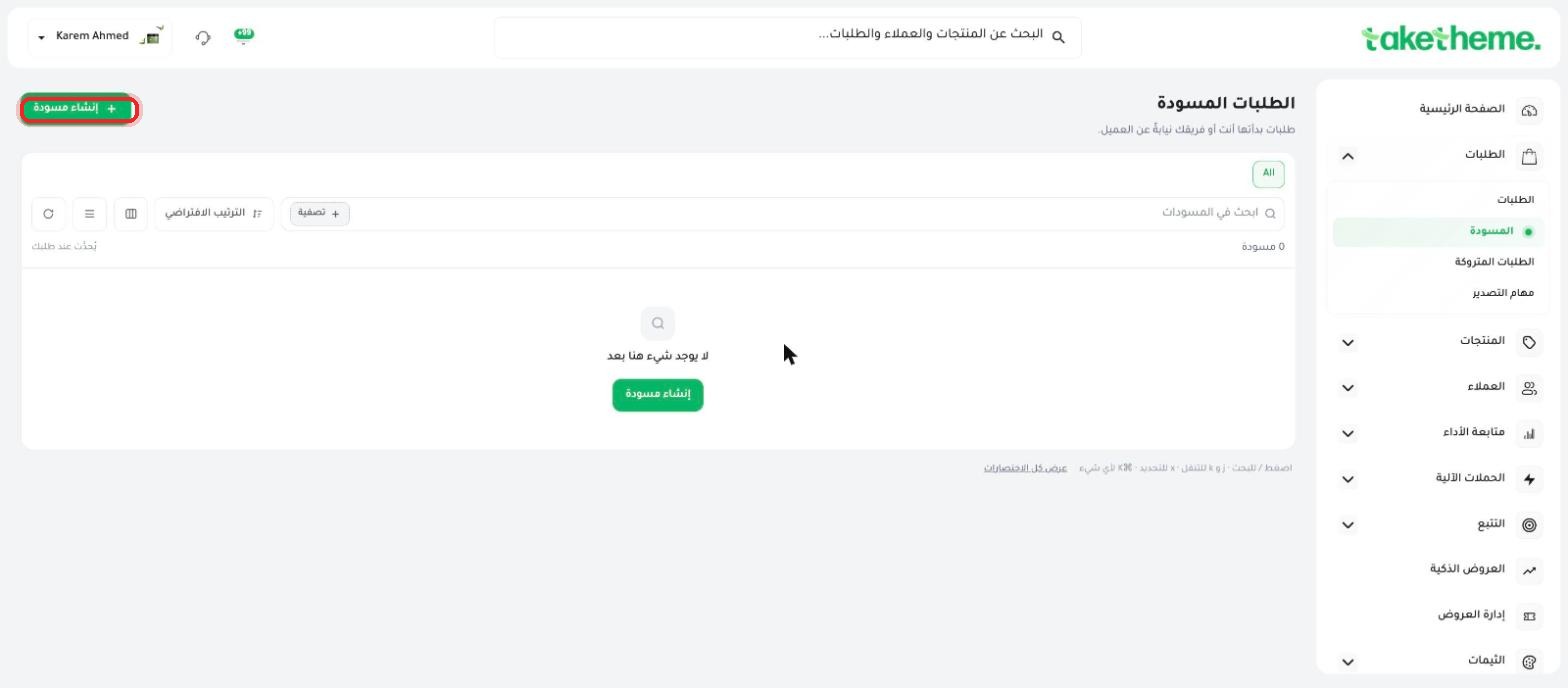
From the sidebar, go to Orders → Draft — here you'll find every order you started creating that hasn't yet turned into a final order.
📍 The Draft tab within the Orders page — currently empty since there are no saved drafts
2
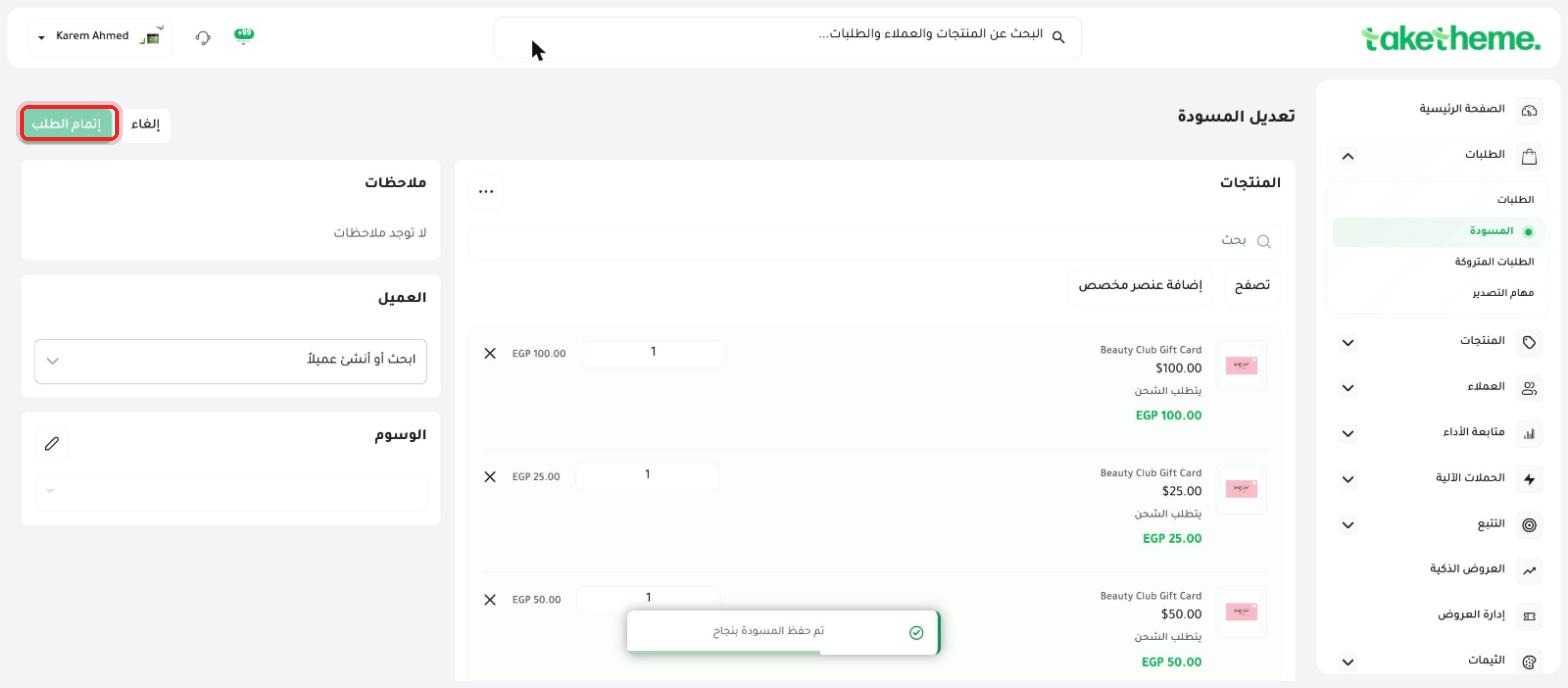
Every draft is saved automatically as soon as you add its first product from the create order page, even if you close the page without finishing — and the Complete order button stays disabled until you select a customer.
📍 An automatically saved draft order — Complete order button disabled and the customer field empty
3
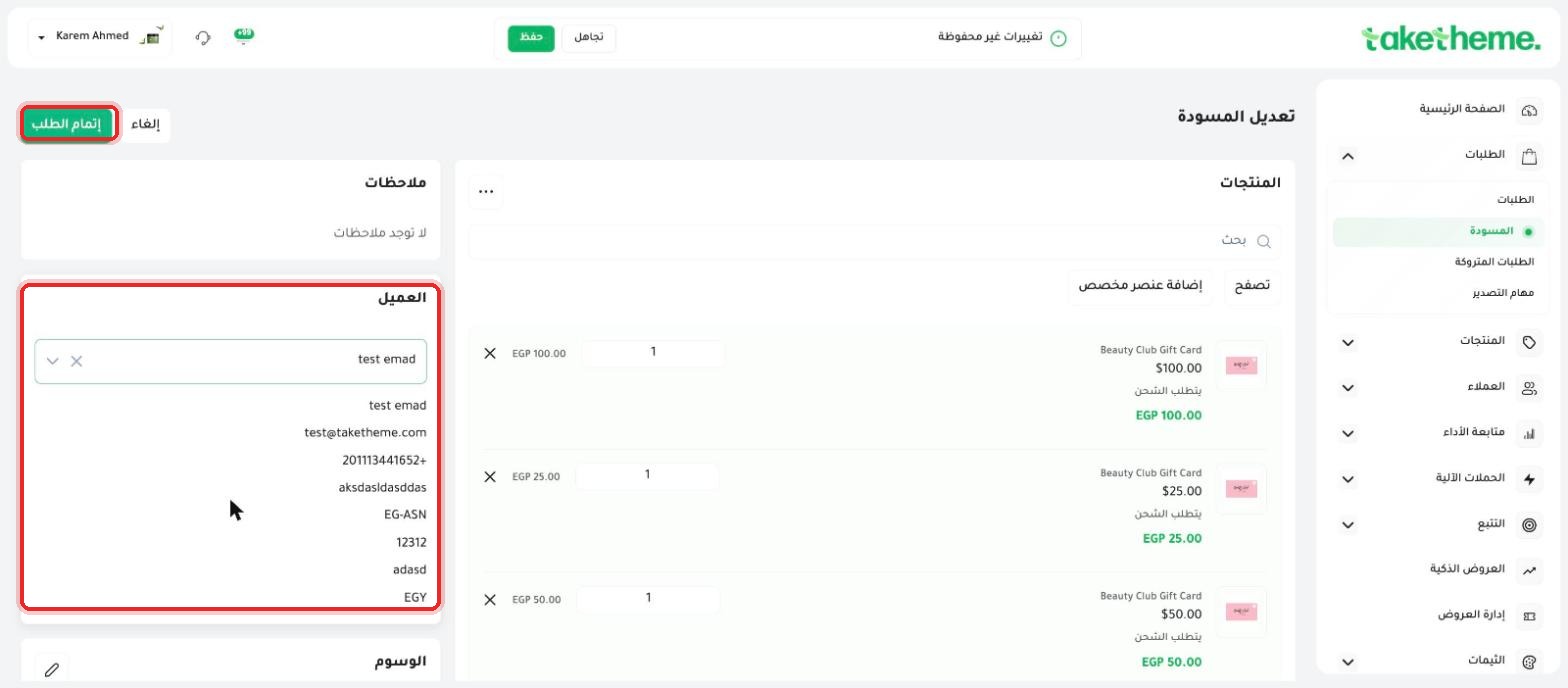
Open any draft from the list to go back and finish it — add the customer and the missing data, and as soon as you select the customer, the Complete order button becomes active to convert it into a final order.
📍 A draft order after adding a customer — order details complete and the Complete order button enabled
4
If you don't need a draft at all, open it and delete it from the actions menu available on its page — deletion is permanent and doesn't affect any other orders.
💡 Drafts are useful when you're building an order over the phone with a customer or preparing a price quote before confirmation — you can leave one for any length of time without it expiring or being deleted automatically.
❓ Frequently Asked Questions
Do drafts show up in sales reports?
No, a draft isn't an actual order — it's only counted in sales reports and statistics once it's converted into a final order by clicking Complete order.
Is there a maximum number of drafts I can leave?
We didn't notice any maximum limit during testing — you can leave as many drafts as you need, or delete them.
Can someone else on my team see the drafts I created?
Yes, the Drafts page is shared across all staff accounts that have access to the Orders section.