A complete guide to creating and publishing a product with all its core fields.
Last updated: 2026-09-09
🔧 Steps to create a complete product
1
From Products, click + Add Product, then in the basic information section enter the product name and description.
2
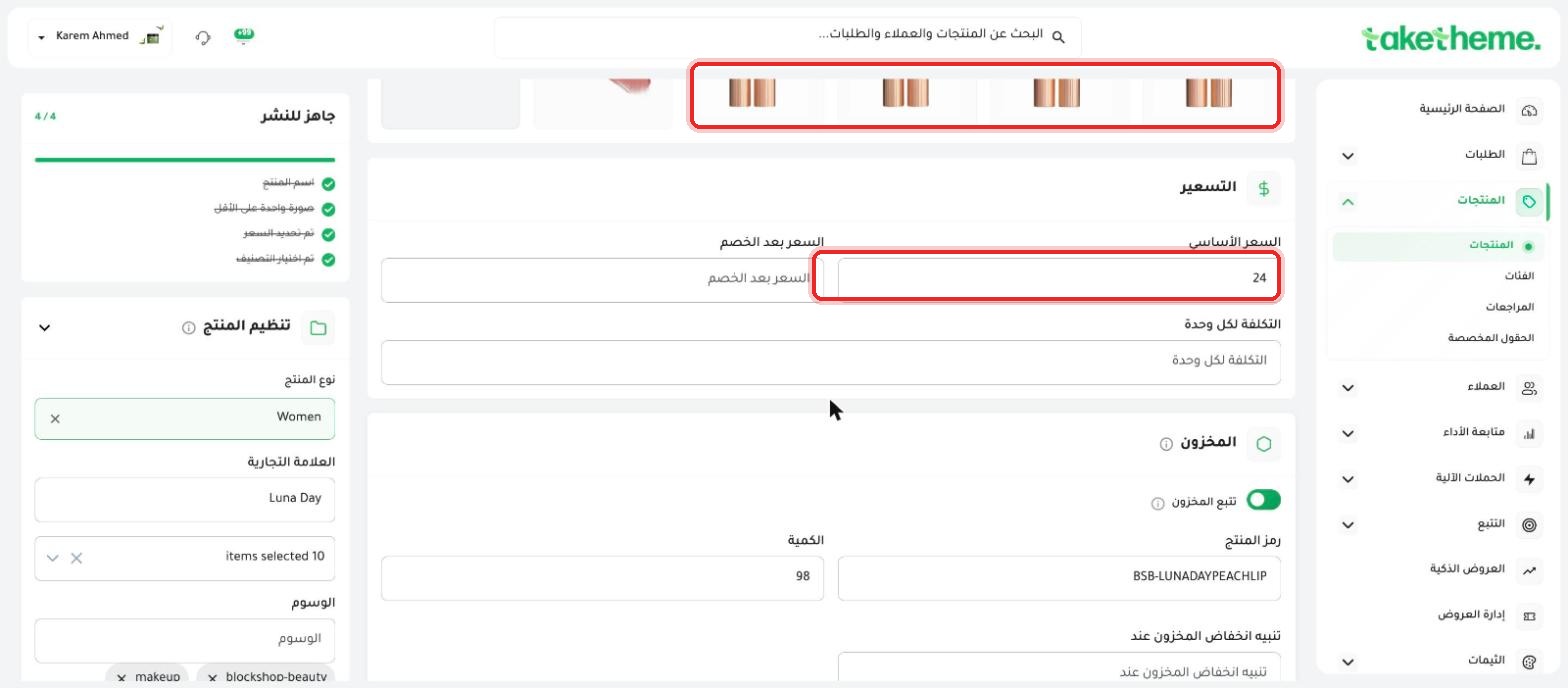
From the Product Media section, upload at least one image (recommended size 1200×1200px) — a required condition before publishing.
📍 Product Media and Pricing fields in the product form
3
From the Product Organization section on the right, set the product type, brand, and the categories the product belongs to — you can select more than one category for the same product.
4
Add tags to help with search and internal filtering.
5
Check the Ready to publish box on the left — 4 conditions must be met (product name, at least one image, a set price, and a selected category) before the product appears to customers.
💡 This article follows on from "Uploading products for the first time" in the Getting Started section — check it out if this is the first time you're adding a product.
❓ Frequently asked questions
Can a single product belong to more than one category?
Yes, from the Product Organization section you can select more than one category for the same product at once.
Do I have to fill in every field in Product Organization before publishing?
No, the mandatory conditions for publishing are only the product name, one image, price, and category — the rest (brand, tags) are optional.