Change the status, tags, or categories of multiple products at once.
Last updated: 2026-09-09
🔧 Steps to bulk edit products
1
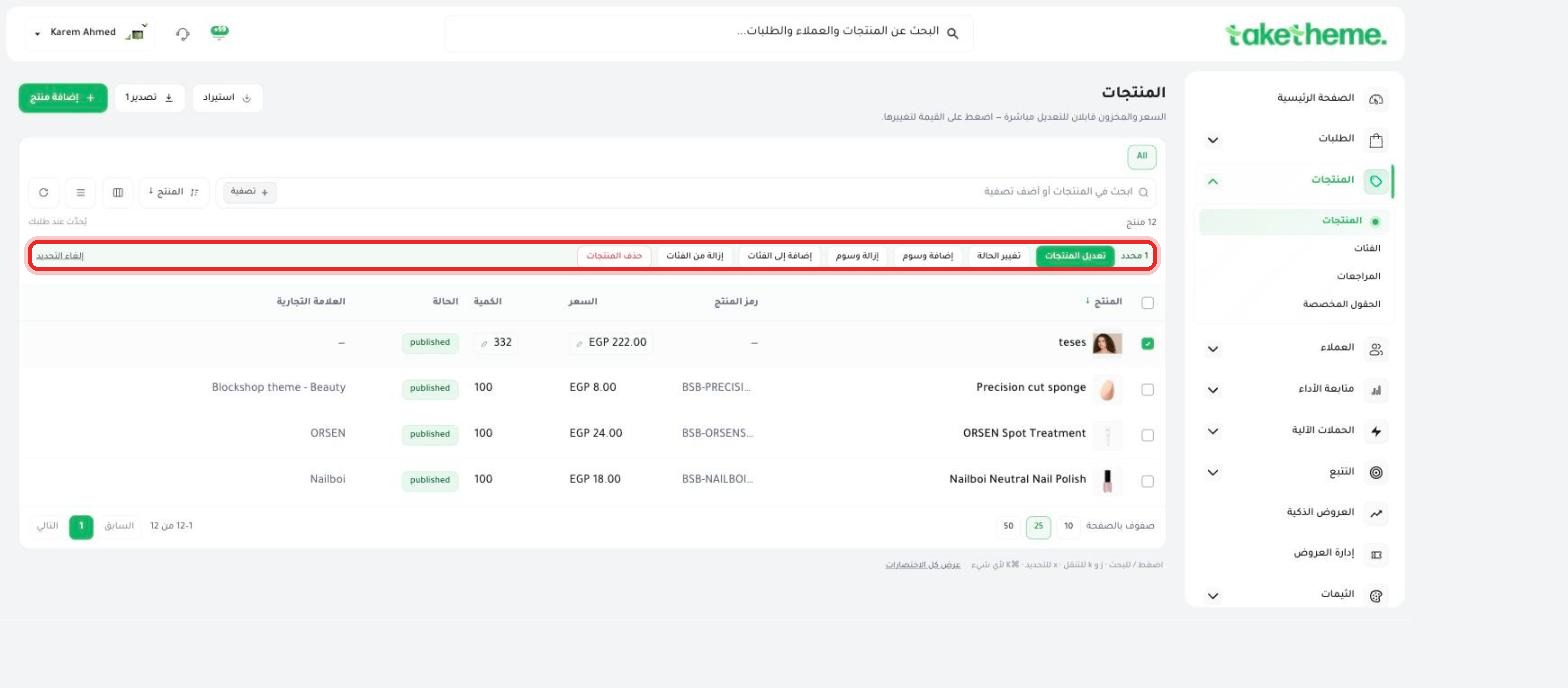
From the Products page, select the products you want to edit by checking the checkbox next to each one — a bulk actions bar appears above the table showing the number of selected products.
📍 Bulk actions bar after selecting a product — edit status, add/remove tags, add/remove from categories, and delete products
2
Click Edit status to change the publish status of all selected products at once (from Draft to Published, for example).
3
Use Add tags or Remove tags to manage tags across multiple products at once, or Add to categories / Remove from categories to change their categorization in bulk.
4
The Delete products button (in red) permanently deletes all selected products — use it with caution.
💡 Bulk editing saves significant time when you have dozens of products that need the same change (moving a whole group to a new category, or changing all their statuses at once, for example).
❓ Frequently asked questions
Does bulk editing affect the live store immediately?
Yes, any status or category change you make in bulk applies immediately, just like any individual edit.
Can I select all products across every page at once?
Selection works on the products currently shown on the current page of the table — if you have multiple pages, repeat the selection for each page.
Can bulk product deletion be undone?
No, deletion is permanent with no automatic recovery — make sure of your selection before clicking.