Upload your product's images and arrange them the way they appear to the customer.
Last updated: 2026-09-09
🔧 Steps to upload and order product images
1
From the Product Media section on the product edit page, upload your images by drag-and-drop or by clicking the upload icon — recommended size 1200×1200px, and video up to 1920×1080px with a maximum size of 100MB.
2
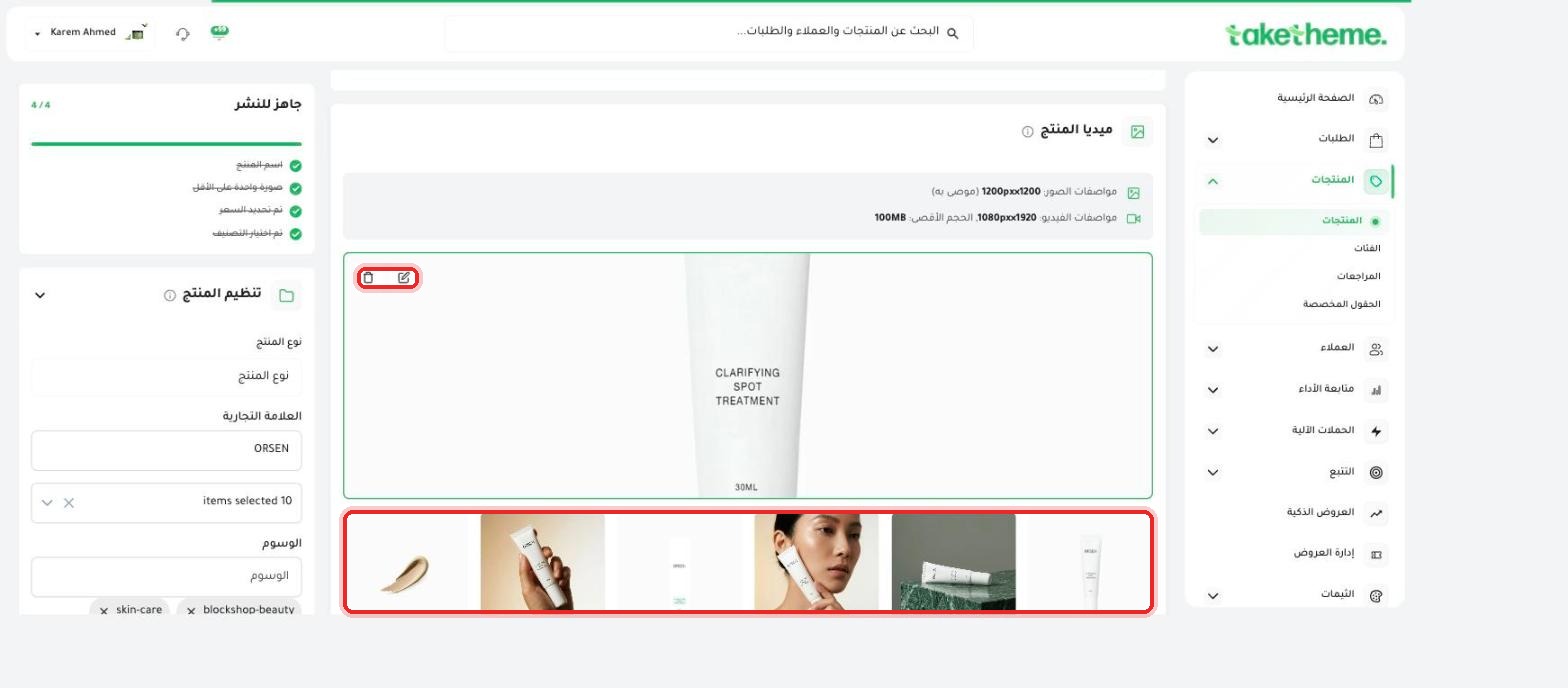
The first image you upload appears as the main image, displayed larger at the top of the section, and the rest appear in a thumbnail strip below it.
📍 Edit and delete icons on the main image, and the thumbnail strip below it
3
Hover over the main image to reveal the edit (crop/rotate) and delete icons — use them to adjust or remove any image without needing to re-upload it.
4
The order of images in the thumbnail strip determines the order they appear to the customer on the product page — the first image is the one shown by default in search results and the product card on the storefront.
💡 If you need a specific image order, upload them in that order from the start — the first image uploaded is the one that leads the product page.
❓ Frequently asked questions
What's the maximum number of images I can upload for the same product?
We didn't notice a visible limit during testing on a product with six images, but it's best to stick to the recommended sizes to keep the product page loading quickly.
Can I upload a video alongside the images?
Yes, the Product Media section supports uploading video (up to 1080×1920px and a maximum size of 100MB) alongside regular images.
If I change a product's image, does it update on the live store immediately?
Yes, any change to product images (adding, deleting, or changing) appears on the product page on the storefront immediately after saving.