Track your store visitors' behavior in detail via GA4.
Last updated: 2026-09-09
🔧 Steps to connect Google Analytics 4
1
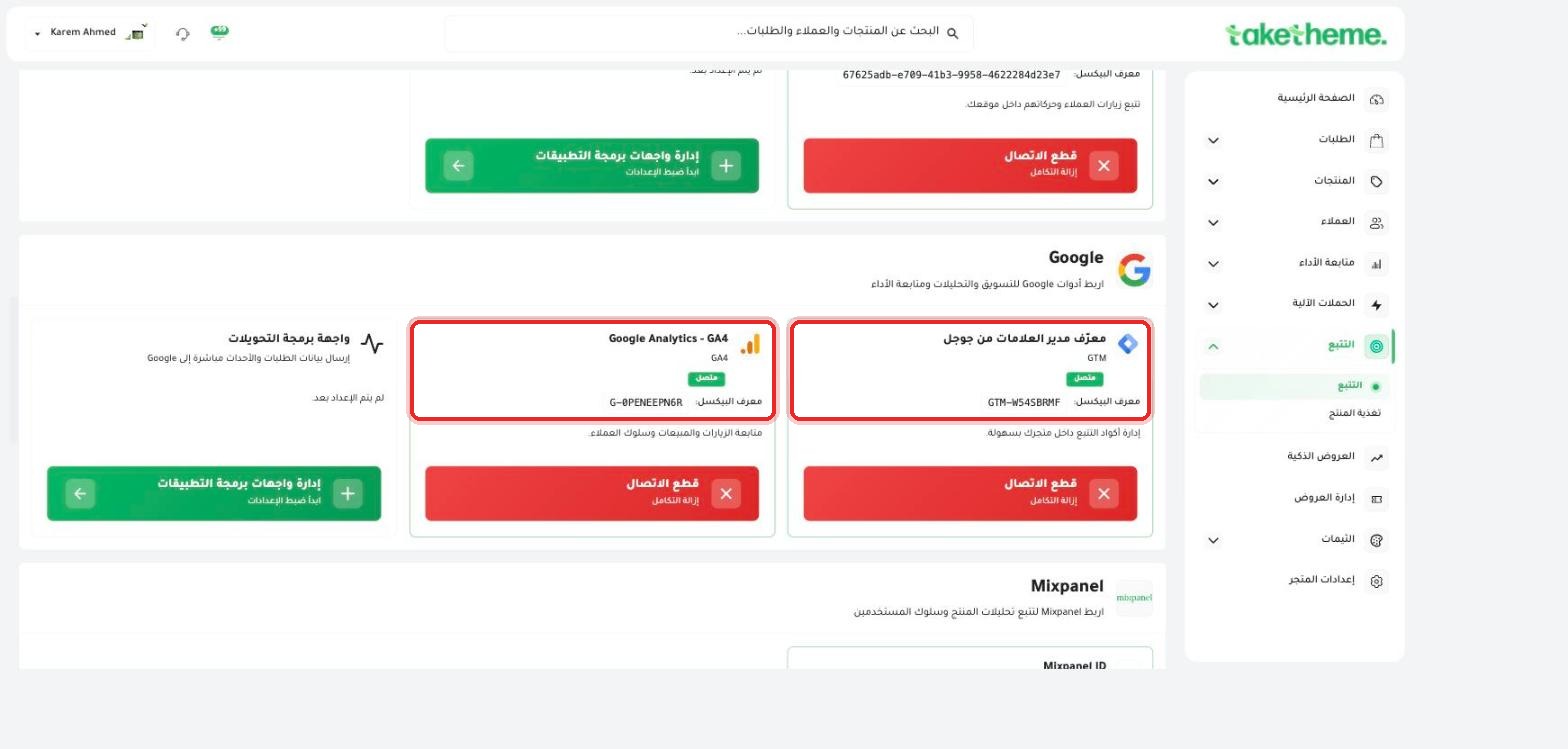
From Tracking → Tracking, scroll down to the Google section.
📍 Google section — Google Analytics 4 already connected with pixel ID G-0PENEEPN6R
2
In the Google Analytics - GA4 card, enter the Measurement ID in the format G-XXXXXXXXXX, which you get from your Google Analytics account (Admin → Data Streams → Web).
3
Save — the connection status will switch to "Connected" immediately, and TakeTheme will start sending visit, sales, and customer behavior data directly to your GA4 account.
4
(Optional) Enable Google's Conversions API from the same section to send event data directly from the server, following the same principle as Meta's and TikTok's CAPI.
💡 GA4 gives you a full picture of visitor behavior on your store (not just sales) — from which page they entered through, to which step they abandoned their cart at, and that's different from TakeTheme's direct sales reports which focus on orders themselves.
❓ Frequently Asked Questions
Where do I get the Measurement ID from?
From your Google Analytics account, via Admin → Data Streams → choose the Web Stream for your site, and you'll find the ID in the format G-XXXXXXXXXX.
Is GA4 a replacement for TakeTheme's sales reports?
No, the two complement each other — TakeTheme's reports focus on actual orders and sales, and GA4 gives you deeper detail about visitor behavior and their experience in the store.