Improve your conversion tracking accuracy on Meta via the Conversions API.
Last updated: 2026-09-09
🔧 Steps to connect the Meta pixel
1
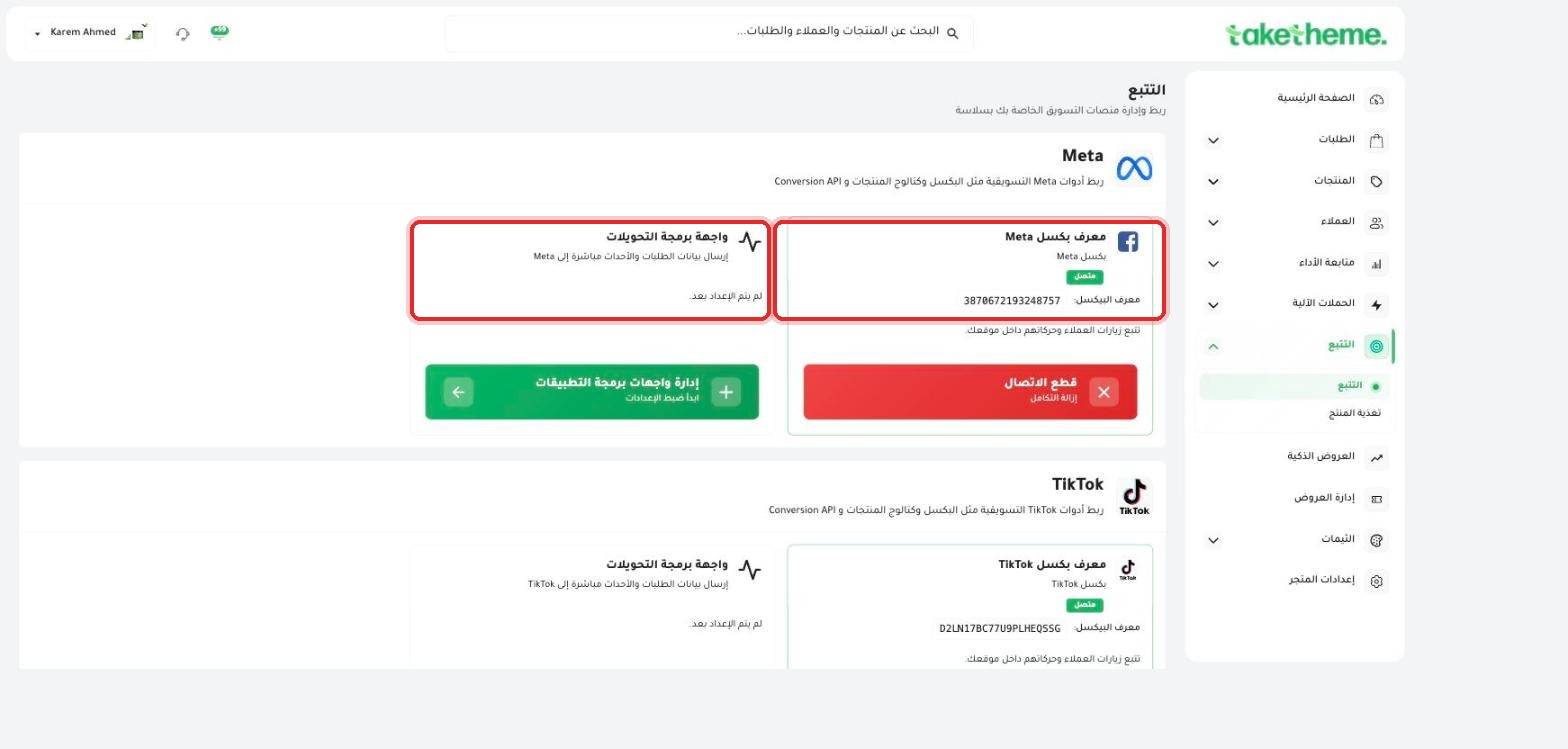
From the sidebar, open Tracking → Tracking, and note the Meta section at the top of the page.
📍 Meta section on the tracking page — the Meta pixel is already connected, and the Conversions API (CAPI) has not been set up yet
2
We noticed in the test store that the Meta pixel is already connected (the pixel ID appears on the page), while the Conversions API (CAPI) shows a "Not set up yet" status — meaning basic browser-side tracking (Browser Pixel) is working, but server-side tracking still needs additional setup.
3
To set up CAPI, click Manage API Integrations under the Meta card — this step requires a direct connection to your store's Meta Business Manager account (not just entering a pixel number).
💡 We were unable to actually complete the CAPI connection in the test environment because it requires a real connected Meta Business Manager account — but the steps available in the dashboard show that setup happens from the same tracking page, and after connecting you'll see the "Conversions API" status change from "Not set up yet" to a connected state.
4
If you need to fully disconnect (pixel + CAPI), click Disconnect — Remove integration in red.
💬 Why do I need CAPI in the first place?
The Conversions API sends order and event data directly from the TakeTheme server to Meta's servers, without relying on the browser pixel alone — this improves tracking accuracy, especially against ad blockers and browser restrictions like Safari's, which limit third-party tracking.
❓ Frequently Asked Questions
Does the Meta pixel work without CAPI?
Yes, the browser pixel works as soon as it's connected and the pixel ID is entered — CAPI is an additional layer to improve tracking accuracy, not a prerequisite for tracking to work at all.
Where do I get my Meta pixel ID from?
From Meta Events Manager in your Meta Business account — copy it and paste it into the pixel ID field on the tracking page in TakeTheme.