Make sure your pixels are recording events correctly before launching any campaign.
Last updated: 2026-09-09
🔍 How do you confirm tracking is actually working?
We reviewed the tracking page in TakeTheme looking for a built-in Test Events Simulator within the dashboard itself, and found no tool with that specific name or function at the time this article was written. The event testing tools actually available are each ad platform's own tools:
1
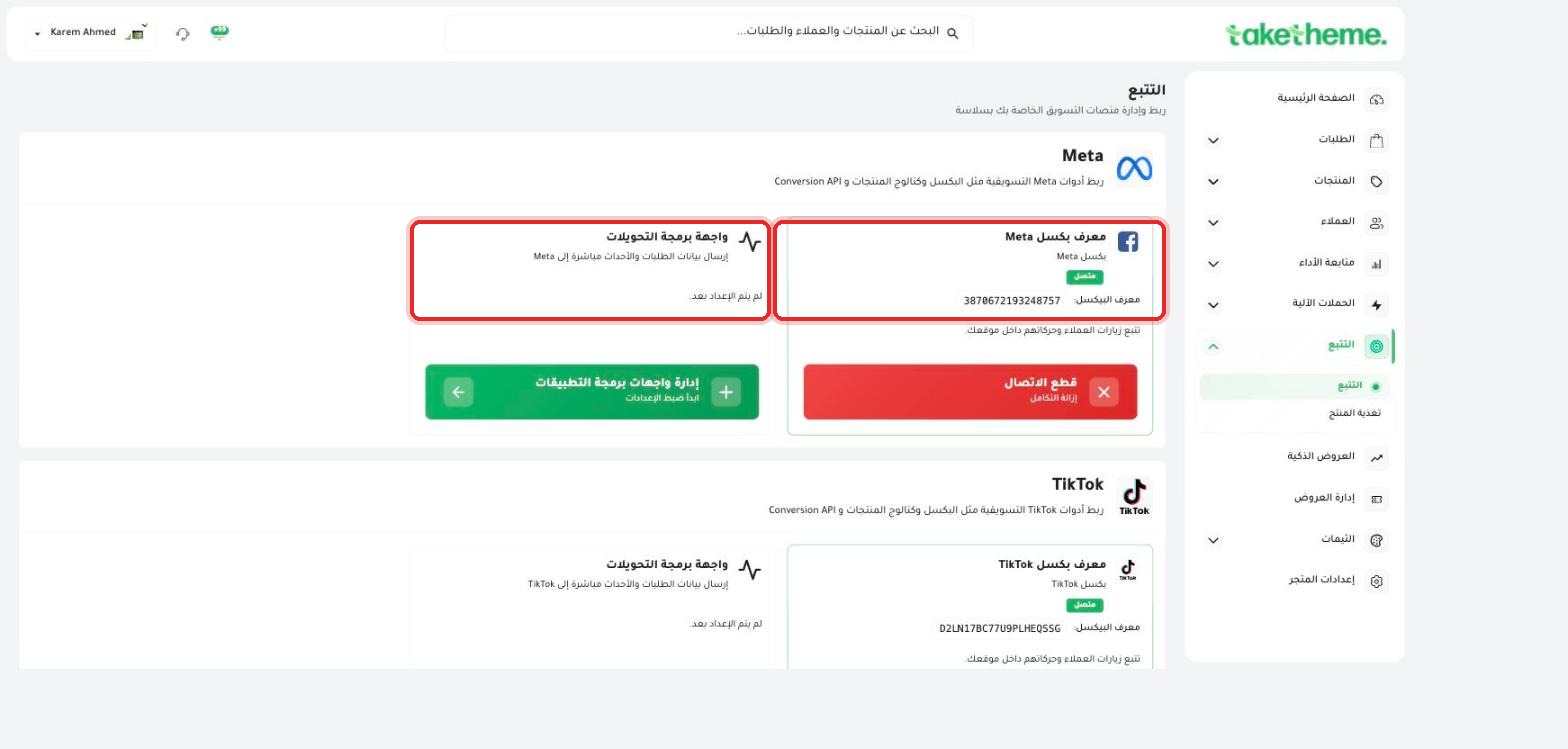
Copy the pixel ID for each platform from the Tracking page in TakeTheme (Meta, TikTok, Snapchat, or GA4).
📍 Pixel IDs shown on the tracking page — use them to look them up in each platform's own event testing tool
2
Open Meta Events Manager (if testing the Meta pixel), and look for the Test Events tab, then paste the pixel ID or browse your store directly and watch events arrive live as they happen.
3
For TikTok, use TikTok Events Manager → Test Events the same way. For Snapchat, use Snapchat Ads Manager → Pixel Health.
4
The simplest practical test: open your store in an Incognito window, and complete a full test purchase (even with a cheap product or a 100% discount coupon), and watch for the "Purchase" event to appear in each testing tool separately.
💡 If the event appears in the platform's testing tool but a bit delayed or with a different value than expected, check the CAPI (Conversions API) setup — server-side sending is usually faster and more accurate than relying on the browser pixel alone.
❓ Frequently Asked Questions
Is there a page within TakeTheme that shows a log of sent events?
We did not find a dedicated event log page within the TakeTheme dashboard itself at the time of review — verification currently happens through each ad platform's own tools separately.
How long does it take for the event to appear after the test purchase?
Usually seconds to a few minutes via the pixel, and slightly faster via CAPI — if it's delayed longer than that, check that the entered pixel ID is correct.