Connect TikTok and Snapchat pixels to your store step by step.
Last updated: 2026-09-09
🔧 Steps to connect TikTok and Snapchat tracking
1
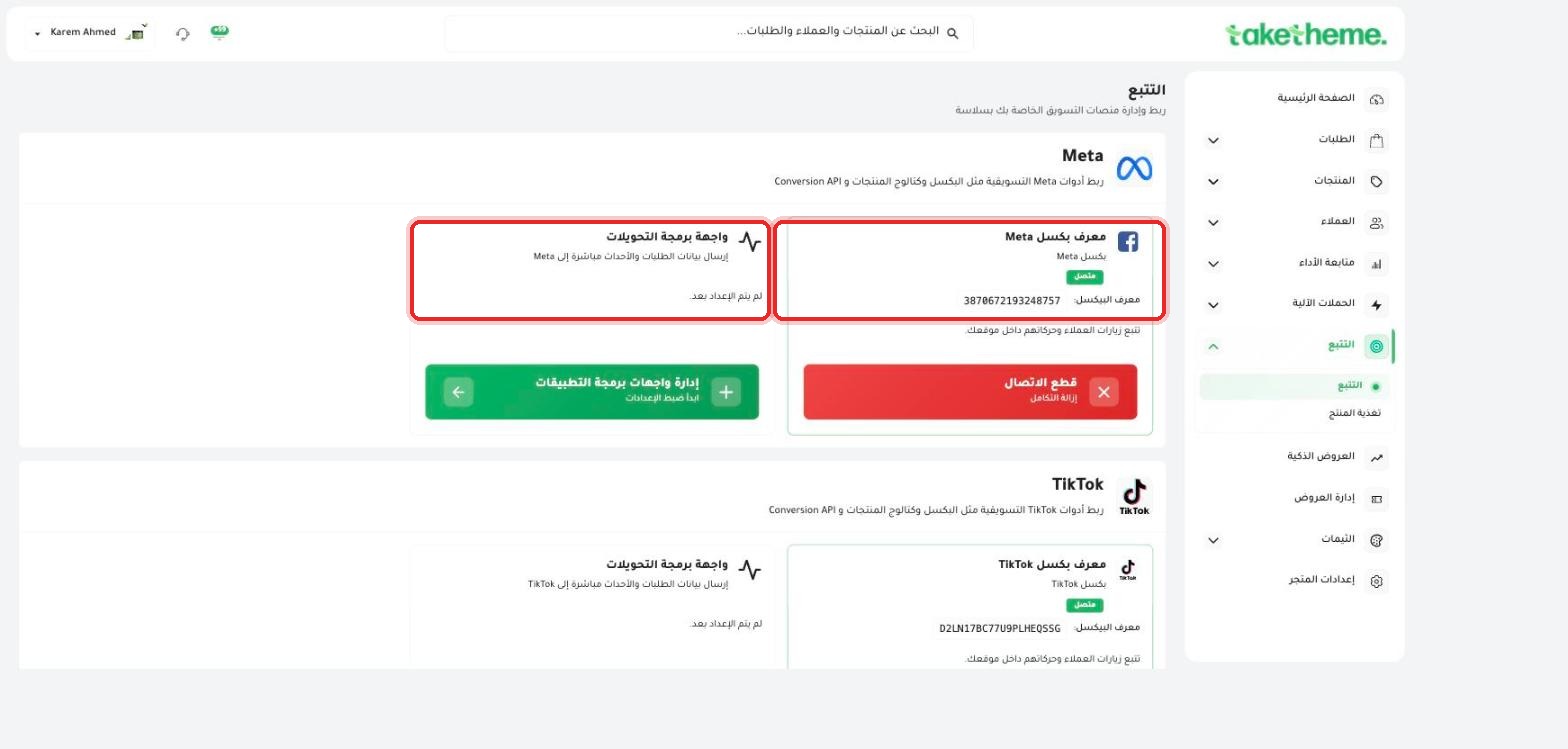
From Tracking → Tracking, you'll find two separate sections: TikTok and Snapchat, with exactly the same structure as the Meta section.
📍 TikTok section on the tracking page — pixel already connected, and the Conversions API has not been set up yet
2
We noticed in the test store that both the TikTok pixel and the Snapchat pixel are already connected (a pixel ID for each appears on the page), while the Conversions API (CAPI) for each shows a "Not set up yet" status.
3
To set up the CAPI for either of them, click Manage API Integrations under the relevant card — it requires a direct connection to your TikTok for Business or Snapchat Ads account.
4
To fully disconnect any pixel, click Disconnect — Remove integration in red under its card.
💡 The same principle as Meta applies here: the pixel (browser-side tracking) and CAPI (server-side tracking) are two separate layers — you can have the pixel working without CAPI, but the reverse usually isn't the case.
❓ Frequently Asked Questions
Does setting up TikTok and Snapchat differ from Meta?
No, it's exactly the same principle — the pixel is connected first (appearing as a pixel ID), and CAPI is an additional optional layer via "Manage API Integrations."
Can I connect TikTok, Snapchat, and Meta together?
Yes, all three are completely independent of each other, and you can enable any number of them at the same time.