Browse your customer list, add customers manually, and get to know every detail of the customer profile.
Last updated: 2026-09-09
🔧 Steps to manage your customer list
1
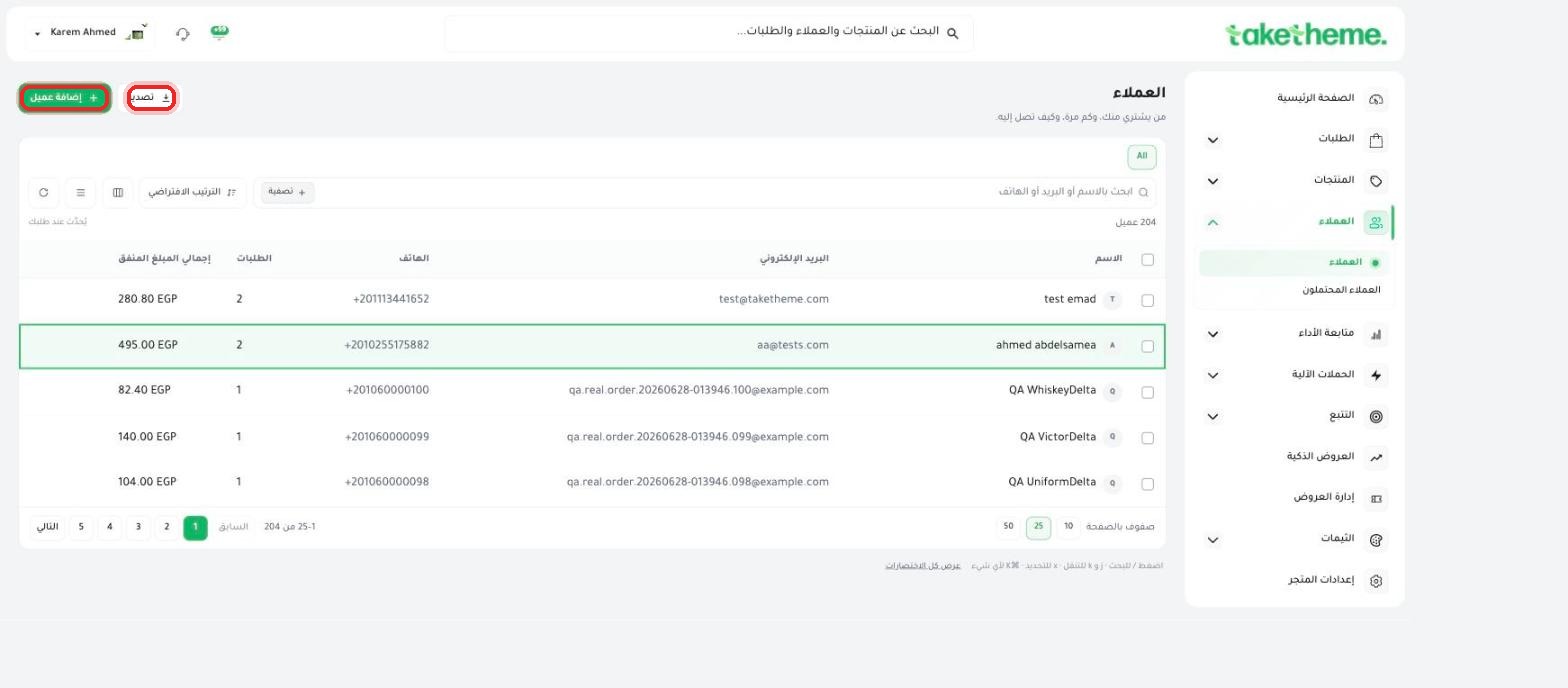
From the sidebar, open Customers → Customers to view a list of every customer registered in your store (204 customers in our example), with columns for name, email, phone, number of orders, and total amount spent.
📍 Customer list — the "+ Add customer" button and the "Export" button at the top of the page
2
Use the search box at the top of the table to search by name, email, or phone number, or click Filter to narrow results by specific conditions.
3
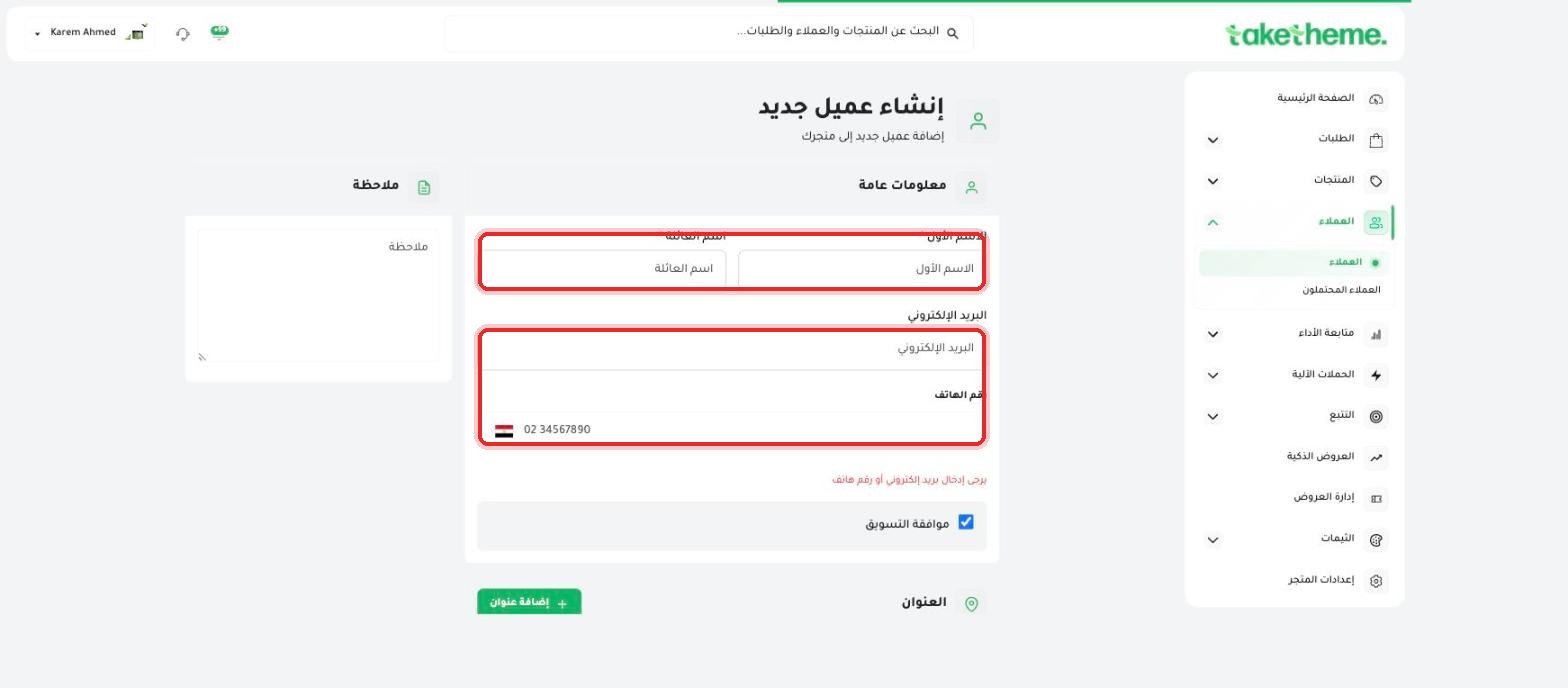
To add a customer manually, click + Add customer and fill in the first name and last name (mandatory), then an email or phone number (at least one of them required), plus an option to enable marketing consent and add an address.
📍 New customer creation form — first name and last name are mandatory, and an email or phone number is required
4
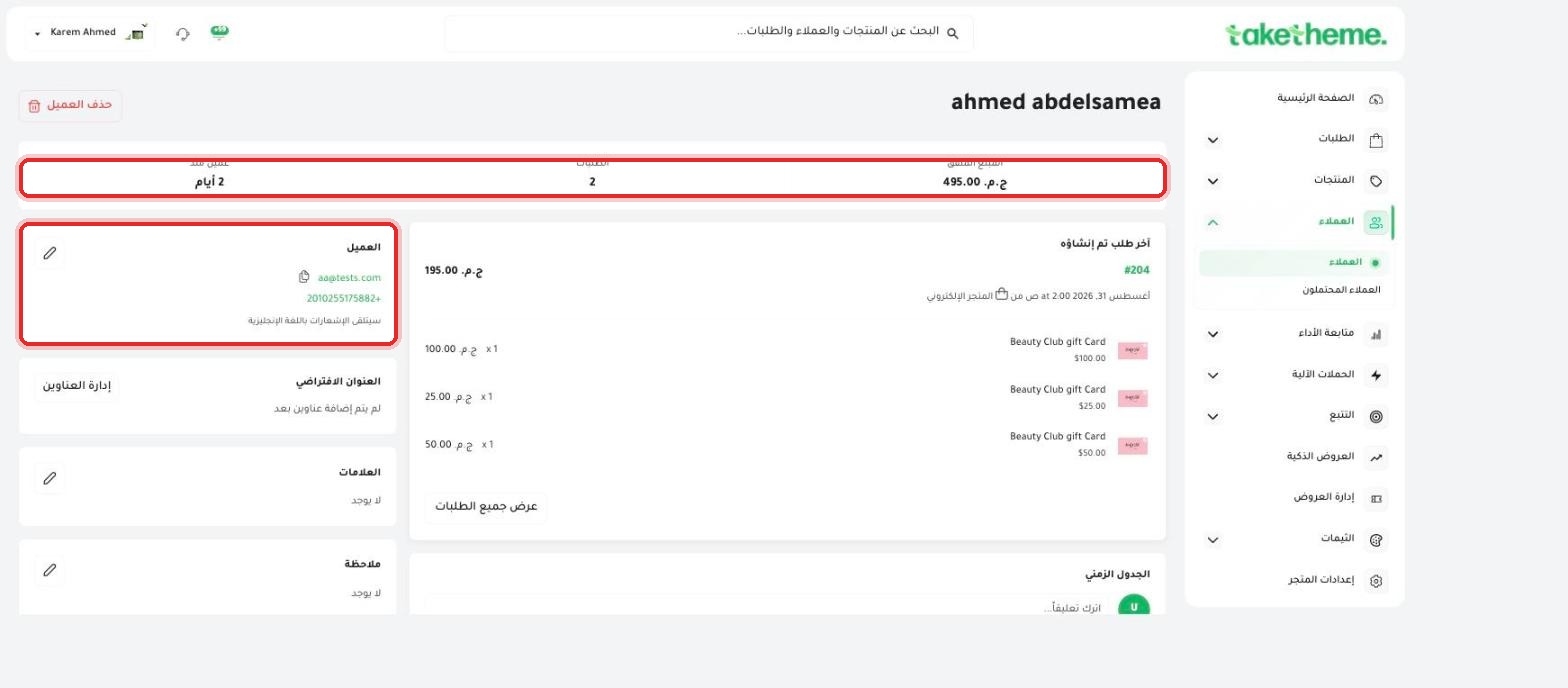
Click on any customer's name in the list to open the full customer profile, which shows: how many days they've been a customer, total orders, total amount spent, contact details, default address, tags, an internal note, and a log of every order.
📍 Customer profile — quick stats (customer since / orders / amount spent) and the customer info card
5
From the customer profile you can edit any data (by clicking the pencil icon ✏️ next to each section), add an internal note about the customer, or delete the customer permanently from the Delete customer button at the top of the page.
💡 We noticed a Timeline section at the bottom of the customer profile that logs every update and comment on the customer's account, with the ability to add an internal comment — useful for a customer service team to leave notes for each other.
❓ Frequently asked questions
Do I need to enter both an email and a phone number for a customer?
No, just one of them is enough (email or phone number) to save the customer — the system rejects saving if both are left blank.
Do customers who sign up from the storefront itself show up here automatically?
Yes, any customer who creates an account or completes an order from the storefront is added to this customer list automatically, with the same data they entered at the time of registration or purchase.
What's the difference between deleting a customer and deleting their orders?
Deleting a customer from their profile erases the customer's account itself, but their previous orders remain in the Orders log separately and aren't affected by the deletion.