Automatically recover lost sales with reminder messages to customers who left their cart.
Last updated: 2026-09-09
🔧 Steps to enable abandoned cart messages
1
From the sidebar, open Automated Campaigns, then click + New automated campaign.
2
In the campaign type selection window, choose Abandoned cart — it automatically targets customers who started checkout and didn't complete their order.
3
Write a name and description for the campaign, and choose the channels: Email and/or WhatsApp.
4
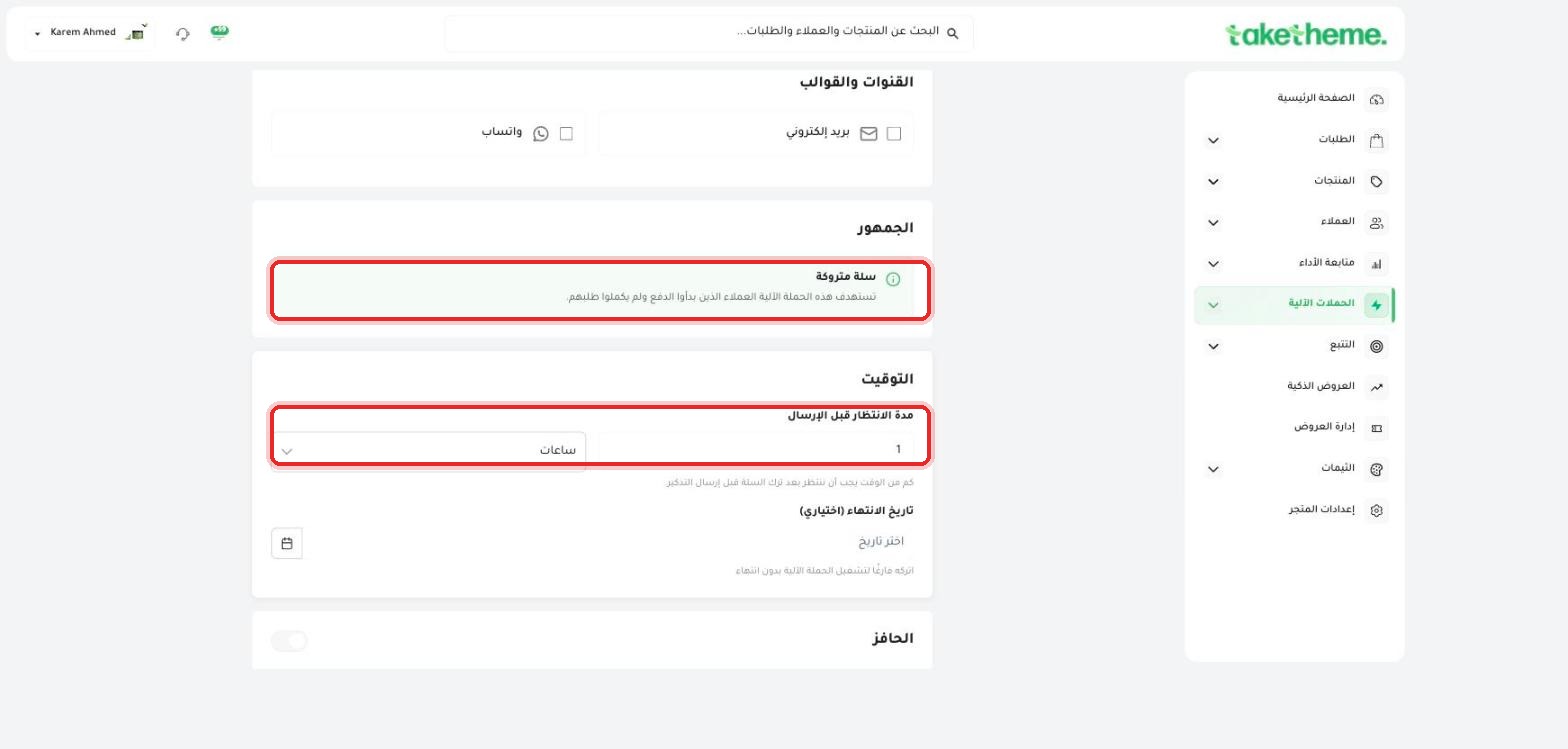
In the Timing section, set the wait time before sending (in hours or days) — i.e. how long after the cart is abandoned the reminder message is sent. The default value is one hour.
📍 Abandoned cart settings — the automatically targeted audience, and the wait time before sending
5
(Optional) Set an end date for the campaign, and leave it blank if you want it to run without stopping.
6
Enable the Incentive toggle if you want to add an automatic discount coupon inside the reminder message to encourage the customer to complete the purchase.
7
Enable Activate immediately and save — or save it as a disabled draft and activate it later.
💡 We noticed that the test store already had 6 automated campaigns ready and automatically enabled for order events (order confirmation, shipping, refund, cancellation, etc.) — see the "Ready-made automation templates" article for more details.
❓ Frequently Asked Questions
Is the message sent only once, or more than once?
It depends on your settings — the campaign sends a reminder after the specified wait time; if you want more than one follow-up message, you can create more than one abandoned cart campaign with different wait times.
Do I have to enable WhatsApp and email together?
No, you can enable just one channel if you prefer — but enabling both increases the chance of the reminder reaching the customer.