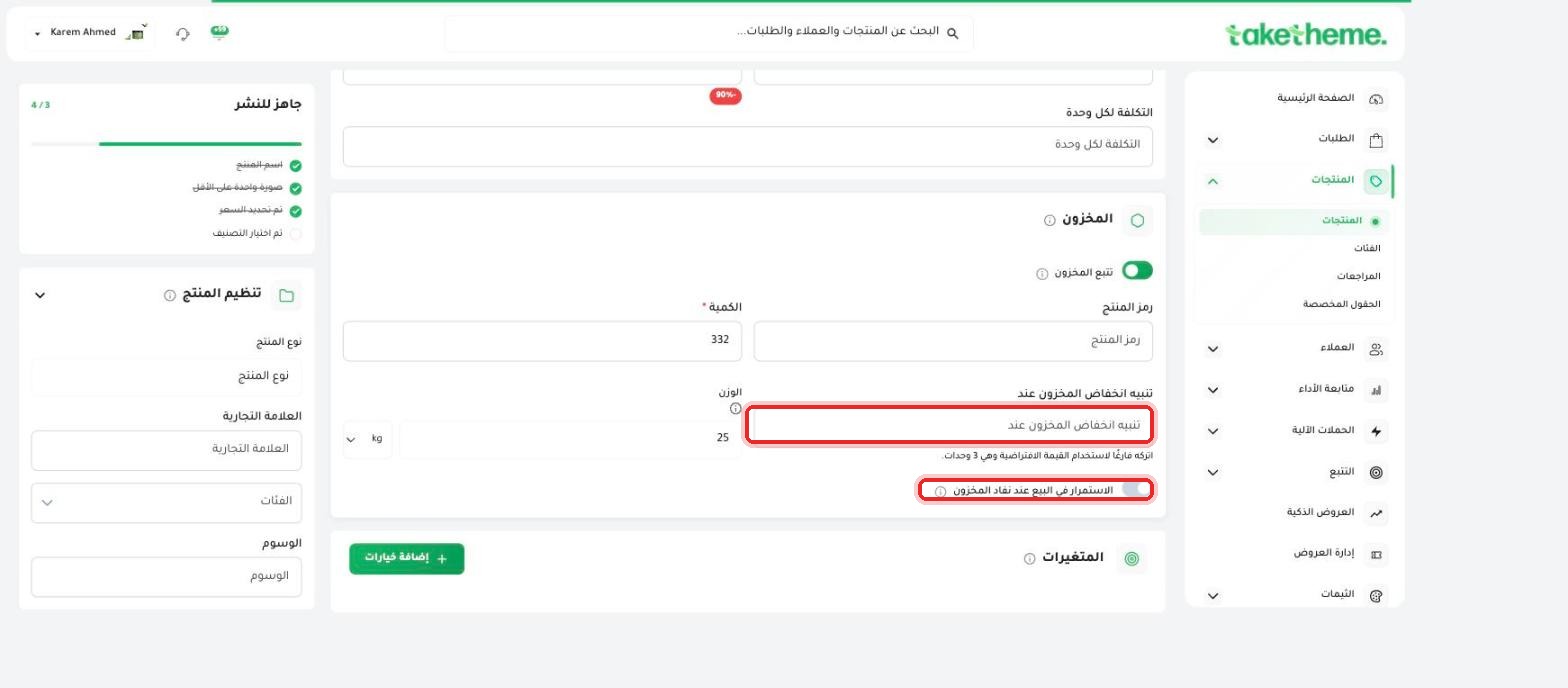
Set the low-stock alert threshold, and decide whether to keep selling once stock runs out.
Last updated: 2026-09-09
🔧 Steps to set a low-stock alert
1
From any product's edit page, scroll down to the Inventory section — make sure the Track inventory toggle is enabled so the following fields appear.
2
In the Low stock alert at field, set the quantity you want to be alerted at (leave it blank to use the default value of 3 units).
📍 Low stock alert field, and the Continue selling when out of stock toggle
3
Enable or disable the Continue selling when out of stock toggle based on your policy — enabling it allows the customer to buy the product even after quantity reaches zero (Backorder), while disabling it automatically hides the purchase option once stock runs out.
💡 We checked directly from the dashboard and did not find a "Notify me when available" feature on the storefront — the currently available feature is only the internal low-stock alert in the dashboard, plus the option to continue selling when out of stock.
❓ Frequently asked questions
Where does the low-stock alert appear?
The alert is internal, inside the dashboard, to help you monitor your stock — check the Quantity column on the Products page regularly for products nearing zero.
What happens to the customer if stock reaches zero and the continue-selling toggle is on?
They can complete the purchase normally as if the product were available, which is suitable for products that get restocked quickly.
Can I set a different alert threshold for each variant on the same product?
Inventory and alert settings are configured at the product level as a whole; if you need finer tracking per variant, check each combination's quantity from the Variants section itself.