Sell the same product in different sizes or colors with independent price and stock.
Last updated: 2026-09-09
🔧 Steps to add options and variants to a product
1
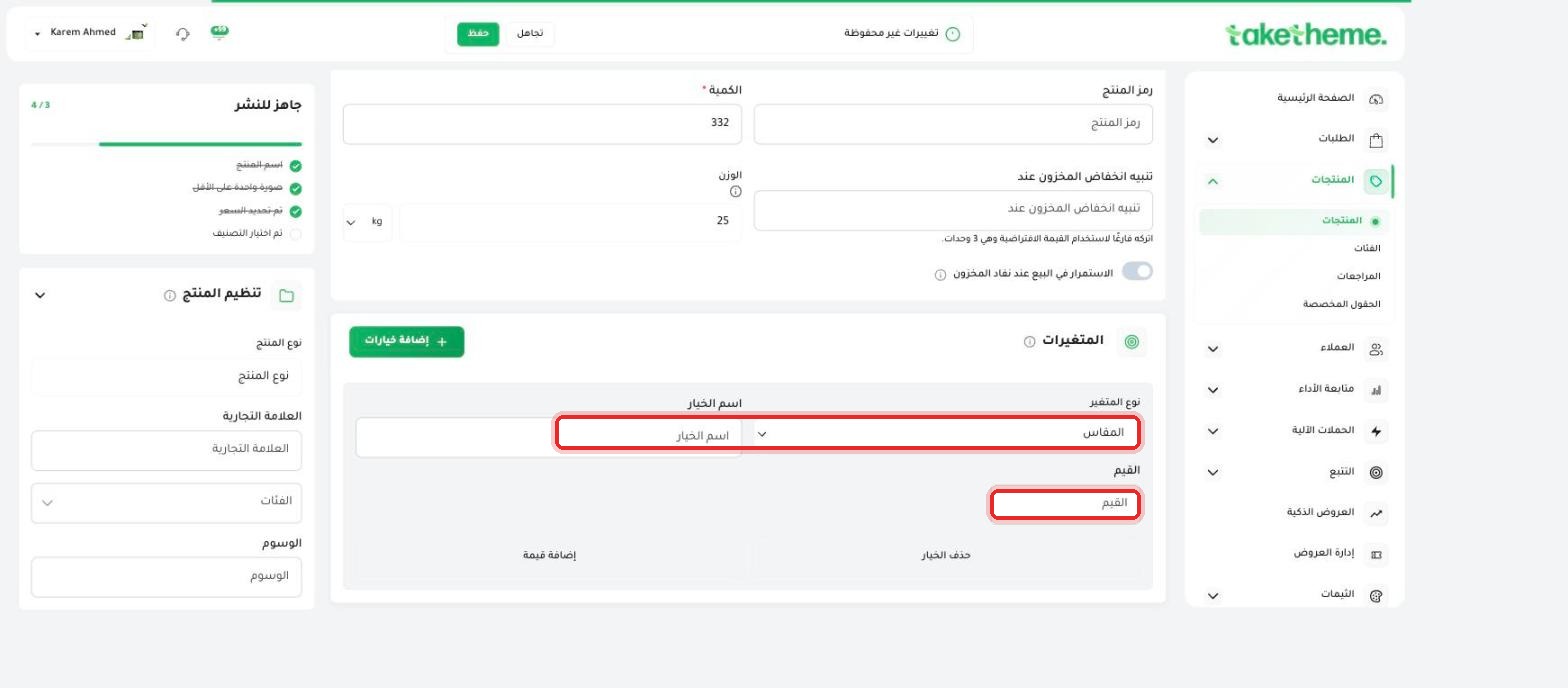
From the product edit page, scroll down to the Variants section below the Inventory section, and click + Add options.
2
Choose the variant type from the ready-made list (like size or color), or enter your own option name if you need a different type.
📍 Add variant form — variant type (Size), option name, and the values field
3
In the Values field, add each value for the option (for example: Small, Medium, Large for size) — each value adds a new product variant.
4
Repeat the same steps if you need more than one option on the same product (Size + Color together, for example) — the system automatically generates every possible combination of the options.
5
After adding the values, you can set a price, stock, and SKU for each combination (variant) independently from the rest.
💡 Each variant has independent stock and price — meaning you can sell "Large/Red" at a different price than "Small/Blue" for the same product, and track each combination's quantity separately.
❓ Frequently asked questions
How many options can I add to the same product?
The system lets you add more than one option (like size and color together), and each option controls the resulting variant combinations.
Does deleting an option delete its associated variant data?
Yes, the "Delete option" button removes the option and every combination built on it — make sure first if there's stock or sales linked to it before deleting.
Can a store have both products with variants and products without variants?
Yes, variants are entirely optional — any product with no options continues to be sold as a single unit as is.